Cache Management of Members
The cache management of Hub Members and Project Members are handled separately.
Hub Member Cache Management
The members section stores member data locally on a per hub basis, at:
C:\ProgramData\Microdesk\BIMrx.CloudManager\Data\Members
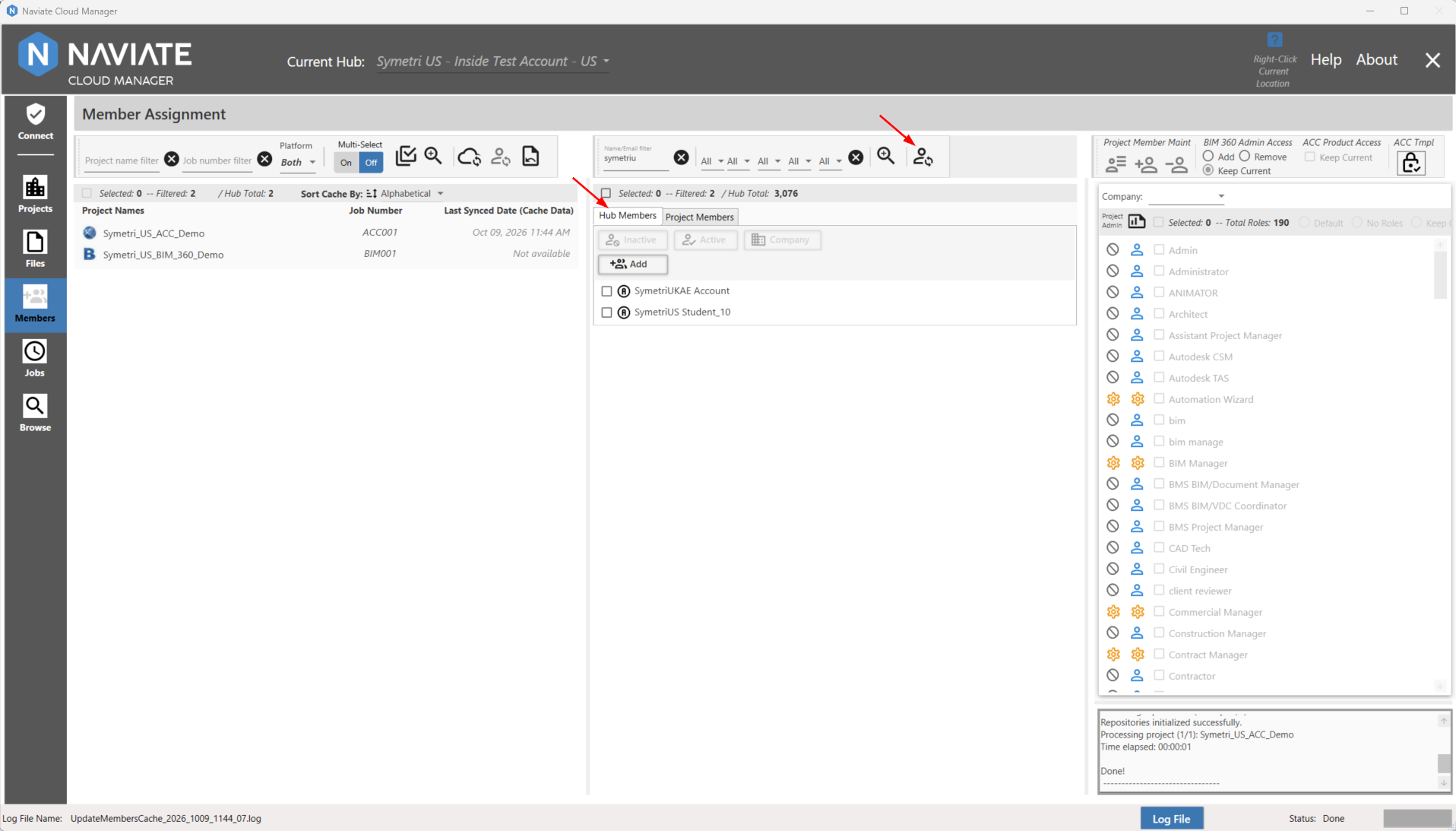
As seen in the screenshot above, the Hub Members tab is selected. This needs to be done in order to sync the local cache for the ACCOUNT members with the remote data found in the remote BIM 360® and/or Forma (formerly ACC) location.
 The refresh ACCOUNT member cache button will sync the local data with the remote data.
Project Member Cache Management
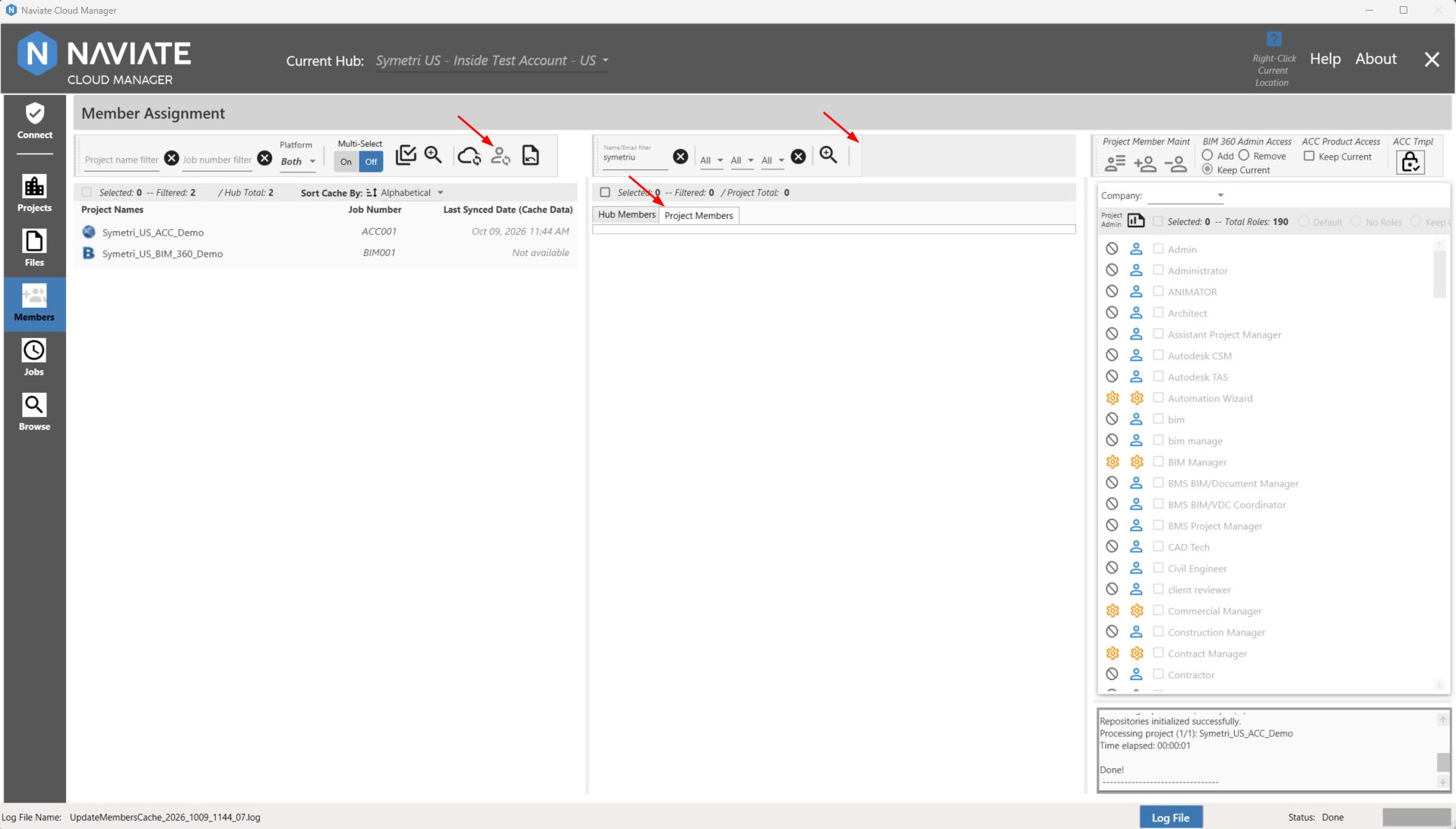
The "Refresh Member Cache button is not displayed in the project members tab in the Members section.
Instead The "Refresh Project Member Cache" button is found on the project view side. This will be disabled by default until at least one project is selected.  /
 Sync local project member list data with BIM 360® / Forma (ACC) data. There are two states for this button; Enabled - when at least 1 project is selected, and Disabled - when no projects are selected. When a project is selected and this button pressed, the project member data will be synced with the remote BIM 360® / Forma (ACC) data. The "Last Synced Date (Cache Data)" will also display the date and time of the sync to reflect when the last time was when that project's data was synced with the remote BIM 360® / Forma (ACC) data.
Please note -- If for whatever reason the local cache gets corrupted and/or any other issues arise in the Members Module as a result of data not properly being loaded, or if the user should want a fresh start of the Members Module, then the appropriate step would be to manually delete the data in this location C:\ProgramData\Microdesk\BIMrx.CloudManager\Data\Members or to press the "Clear all local cache" button (this latter method only clears the data for the currently connected hub).
 Clear all local cache for the connected hub. This will delete the local cached files for the currently connected hub and navigate the user back to the Connect Module.
For more information on the management of project members, please see The Project Member Management Section