The Project Member Management Section
The Project Member Management Section:
In addition to Hub Members, Project Members are always available for display. According to whether Multi-Select is set to Off or On, these project members will display as Single or Multiple.
Single project display (Multi-Select = Off) provides a tab label display of Project Members.
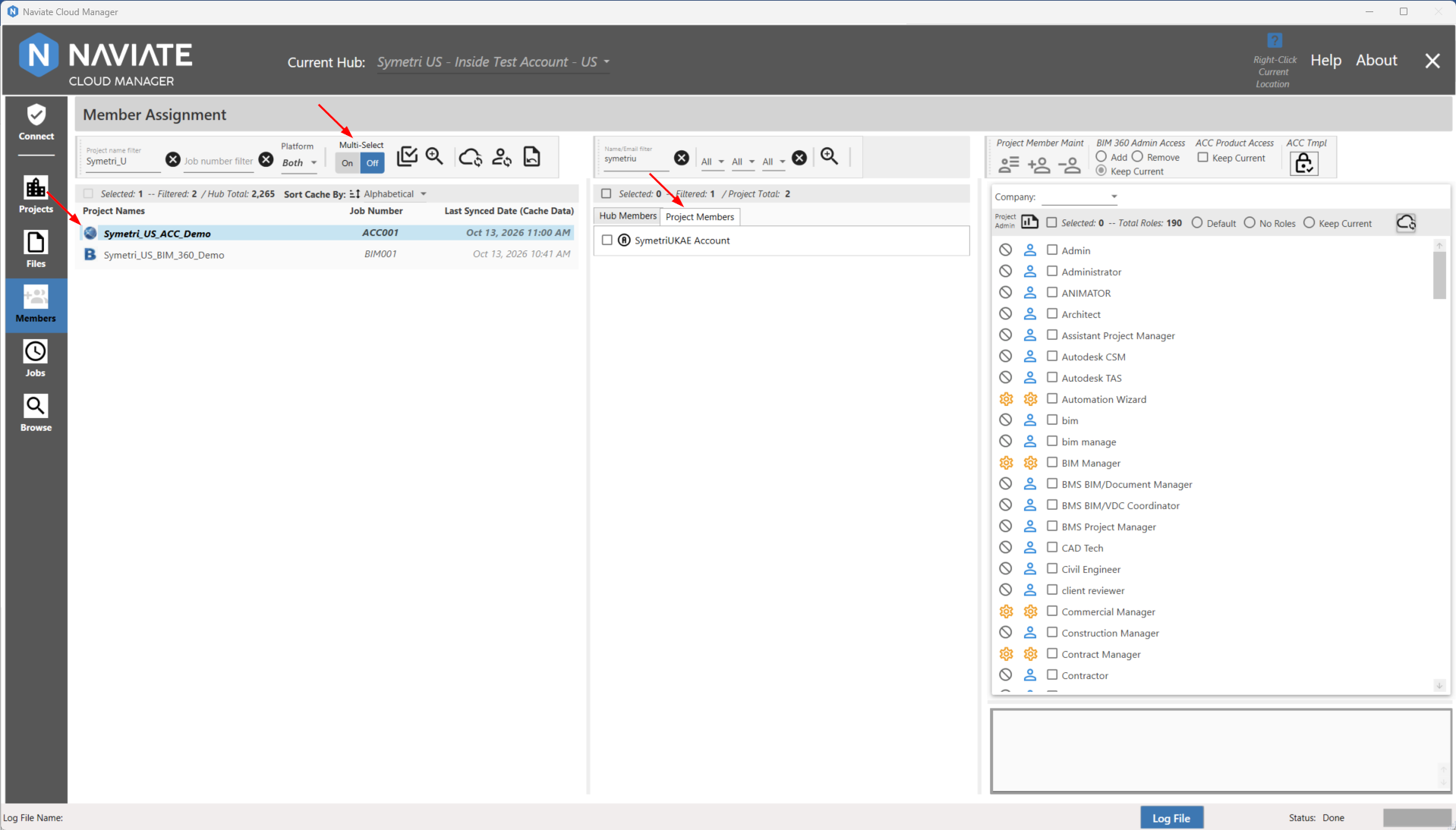
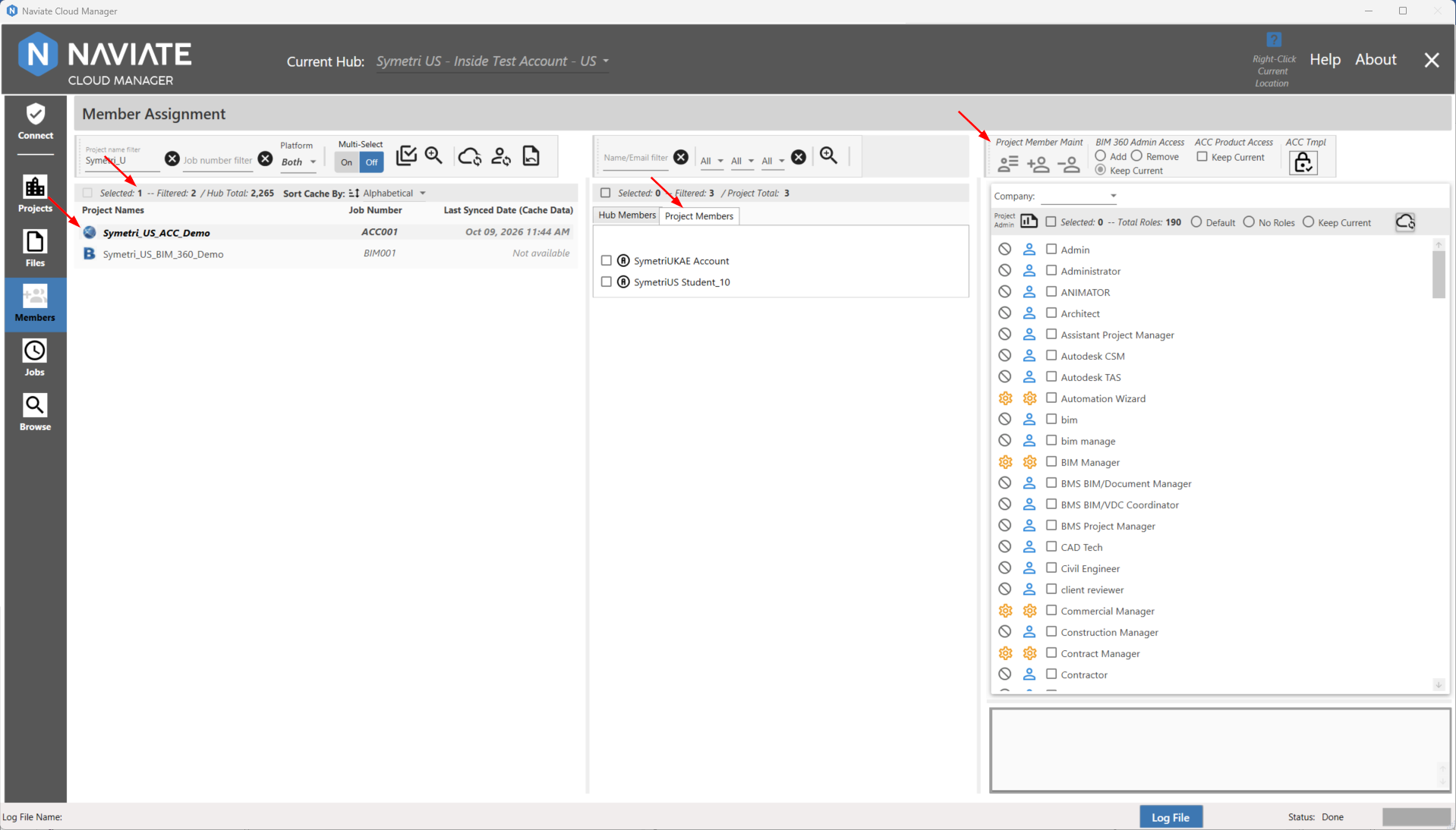
Also note the Hub Member listing. Hub members who belong to the currently selected project in Single Selection mode display a  icon next to their name.
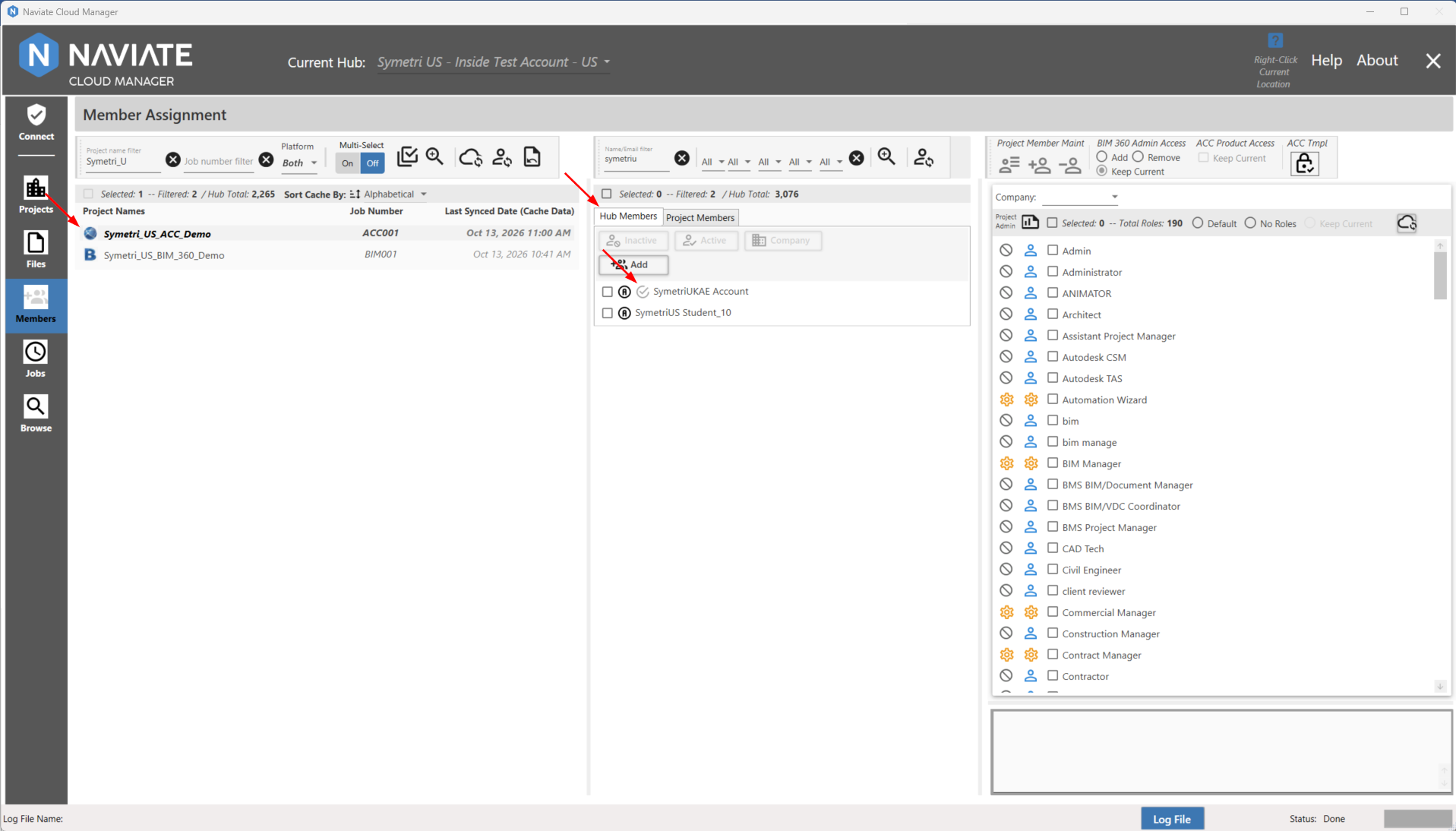
This icon displays for every Hub member that belongs to the currently selected project, when in Single Selection mode (Multi-Select = Off). Also, take note that in Single Selection mode, the Project Members tab label is displayed for all members of the selected project.
Multiple project display (Multi-Select = On) provides a label of Multiple Project Members.
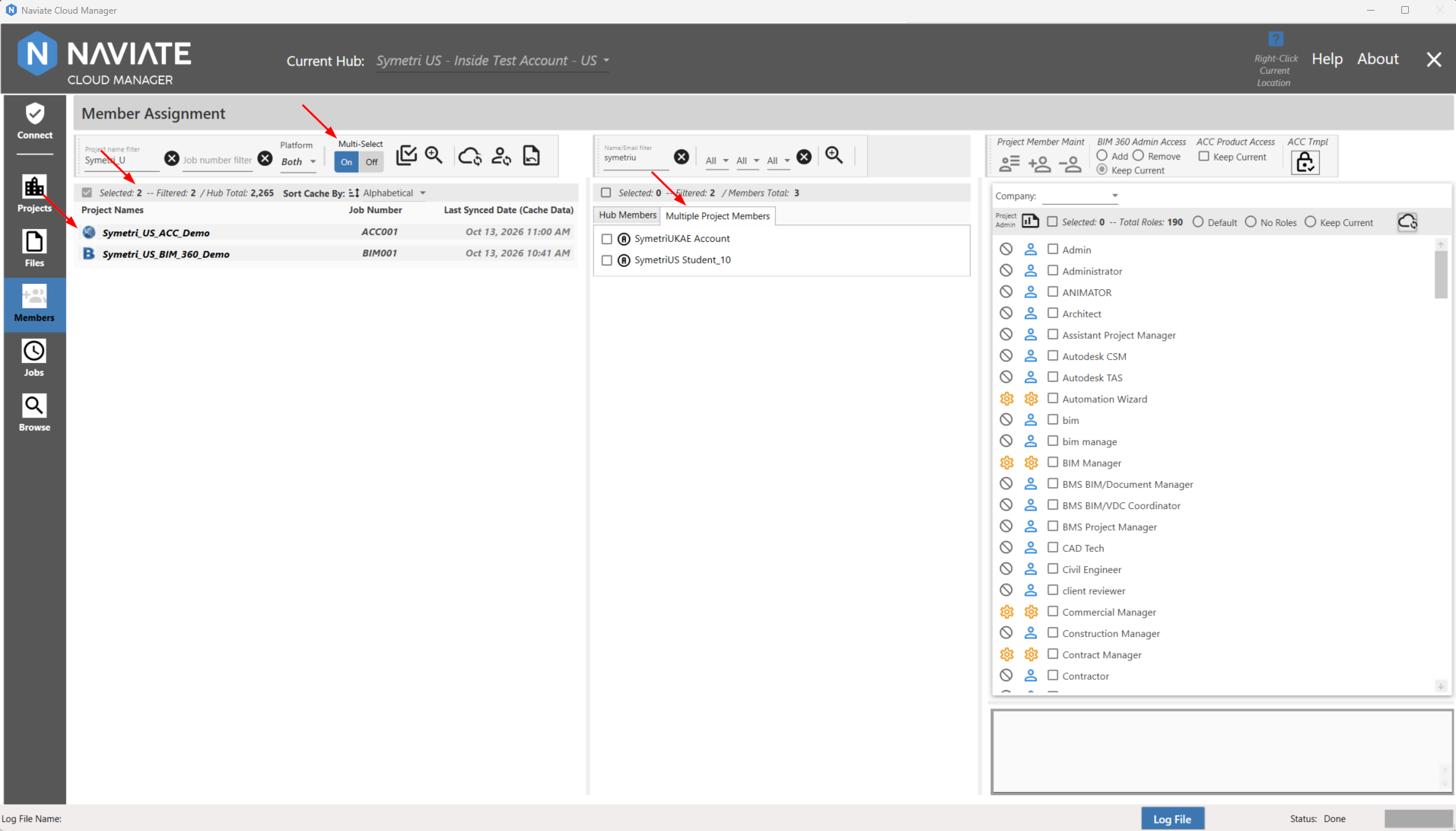
Both single and multiple project selection can be used to Update project members. Each has it's strength, depending on the situation. For example, use single-project display to quickly view all members for a single project. Use multi-project, however, to update the Company, Roles or Project Admin Access for a single member across many projects. Naviate Cloud Manager provides multiple tools to best address different situations that may arise.
To manage project members, a project and a member needs to be selected. By doing so, the disabled buttons will become enabled and project members can be managed as a result.
In the example below, no project members have been loaded. This is because no project has been selected. Furthermore, the project member management buttons are also disabled since no project member has been selected.
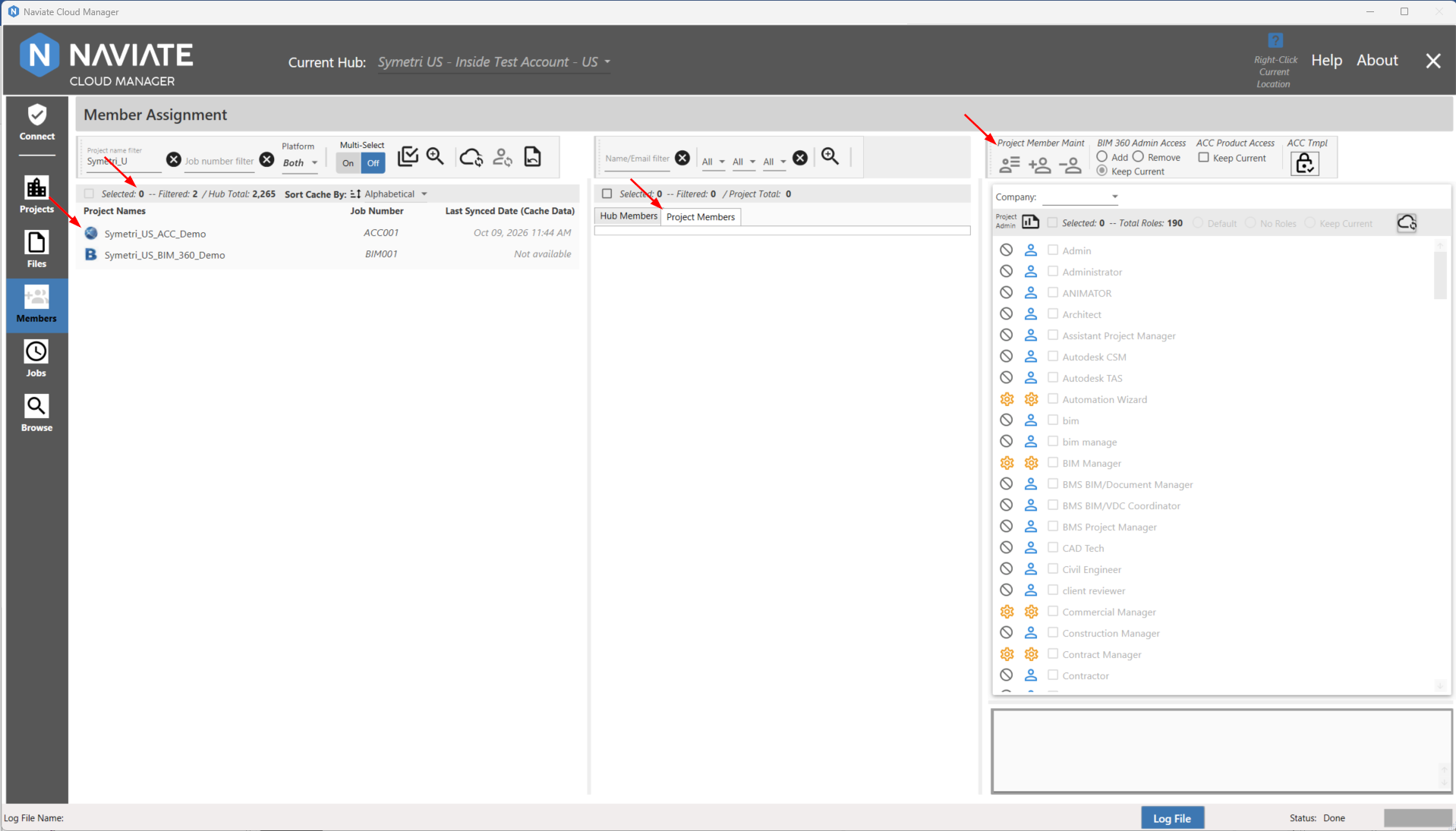
To view all members assigned to a project, simply navigate to the project and select it.
Below is an example of the project member management buttons being disabled since no project member has been selected:
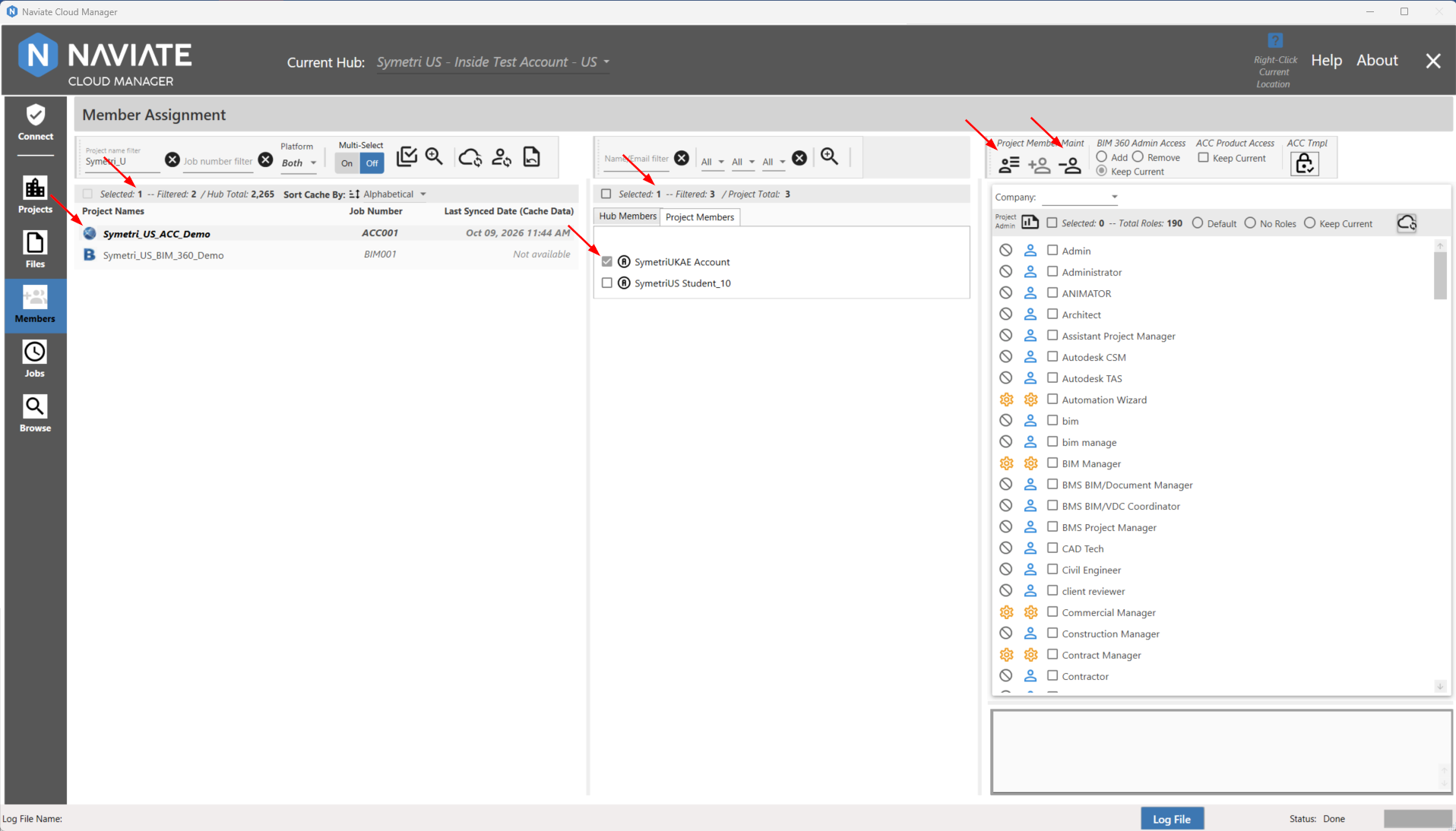
Once a project and a project member has been selected, the project member management buttons will be enabled:
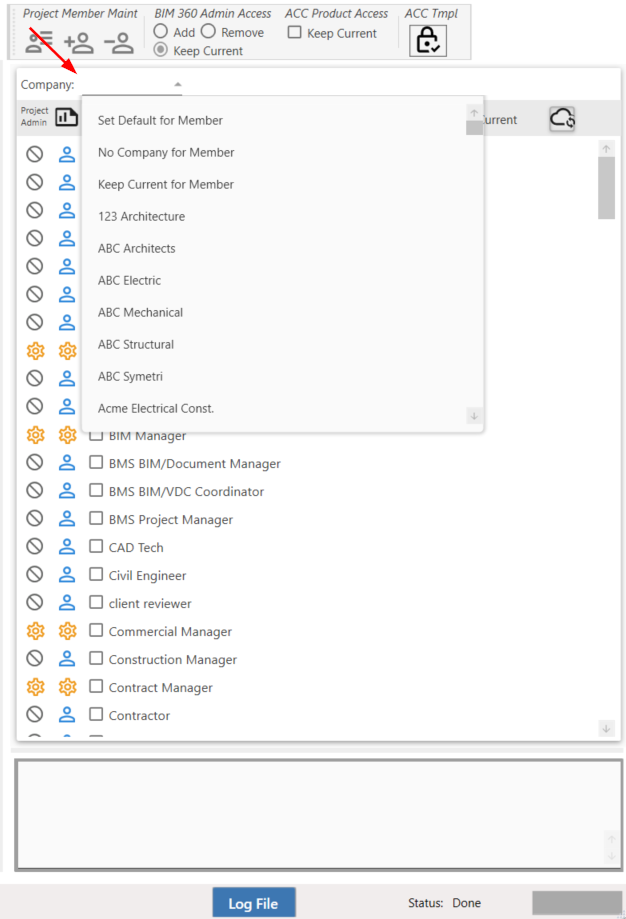
The Member Access Settings window is populated with a list of companies and all industry roles for the Hub.
Company options:
Role Options:
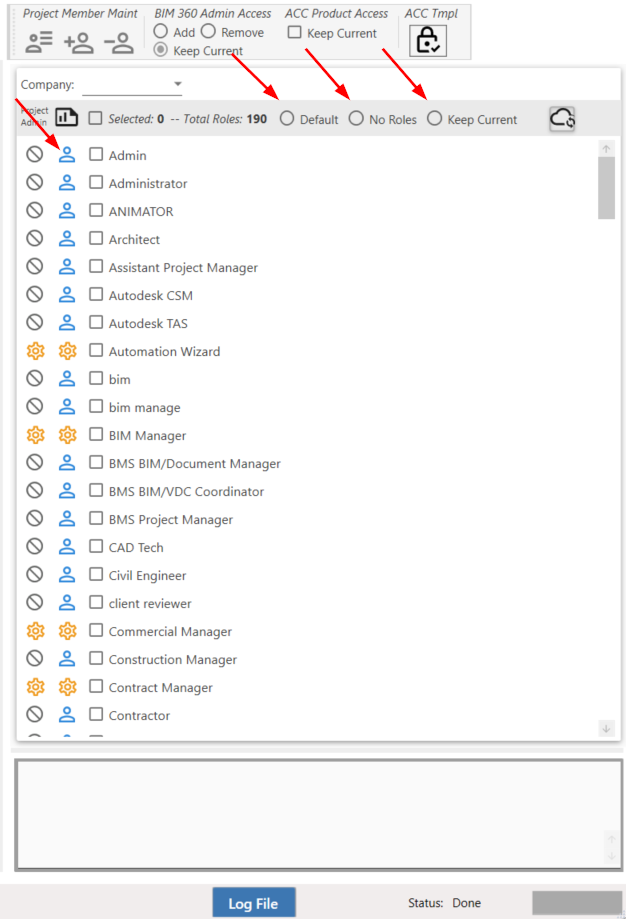
Please note -- The company and role options become enabled as soon as at least one project is selected.
To see the services assigned to a Role, place the mouse pointer over the Role:
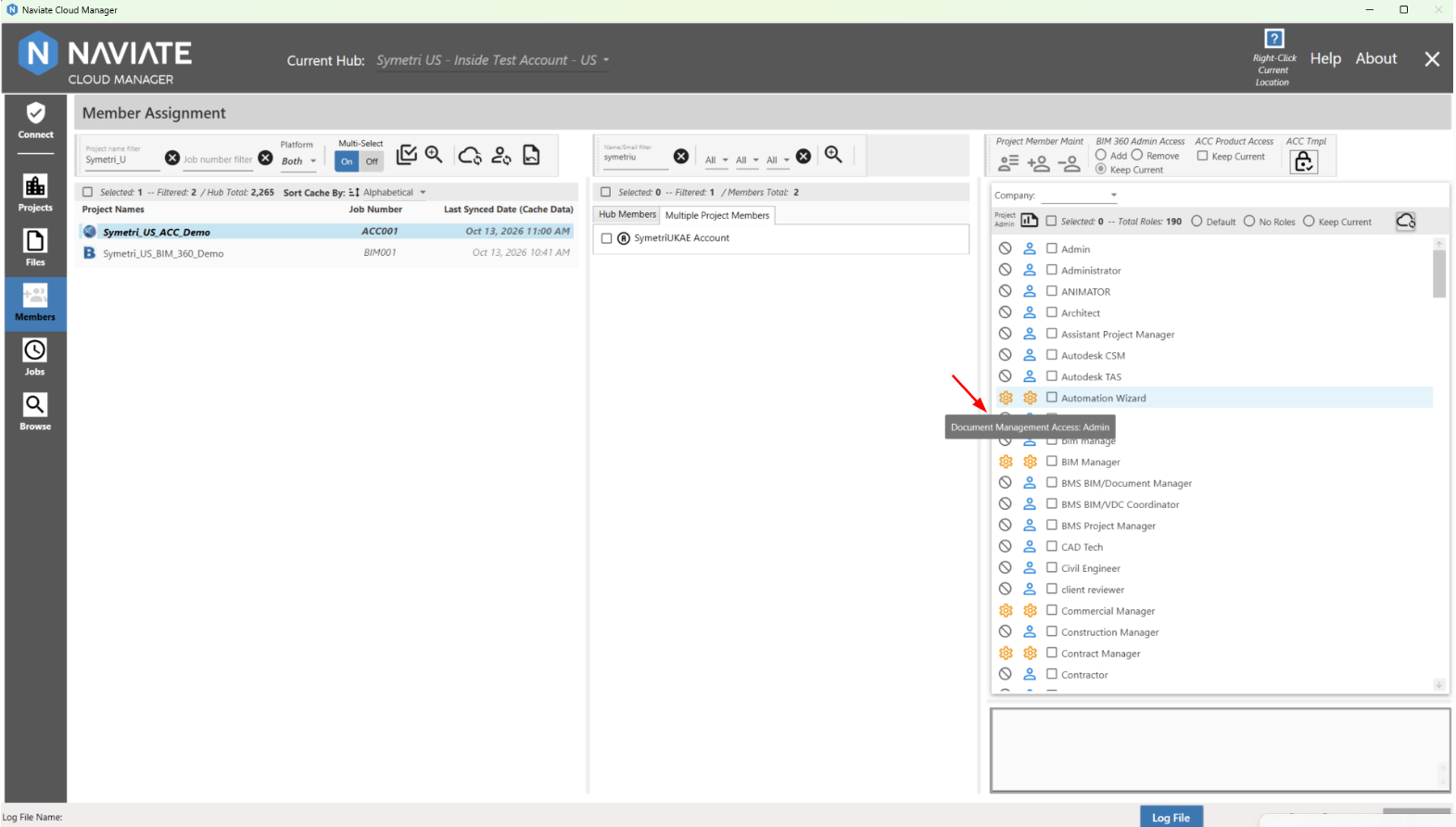
Understanding the role access:

The leftmost icon will show the Project Admin Access
The middle Icon will show the Document Management Access.
The rightmost icon is a checkbox to select the role.
The possible icons are:
 No Access
 Member Access
 Admin Access
Once at least one project and member is selected then members can either be: