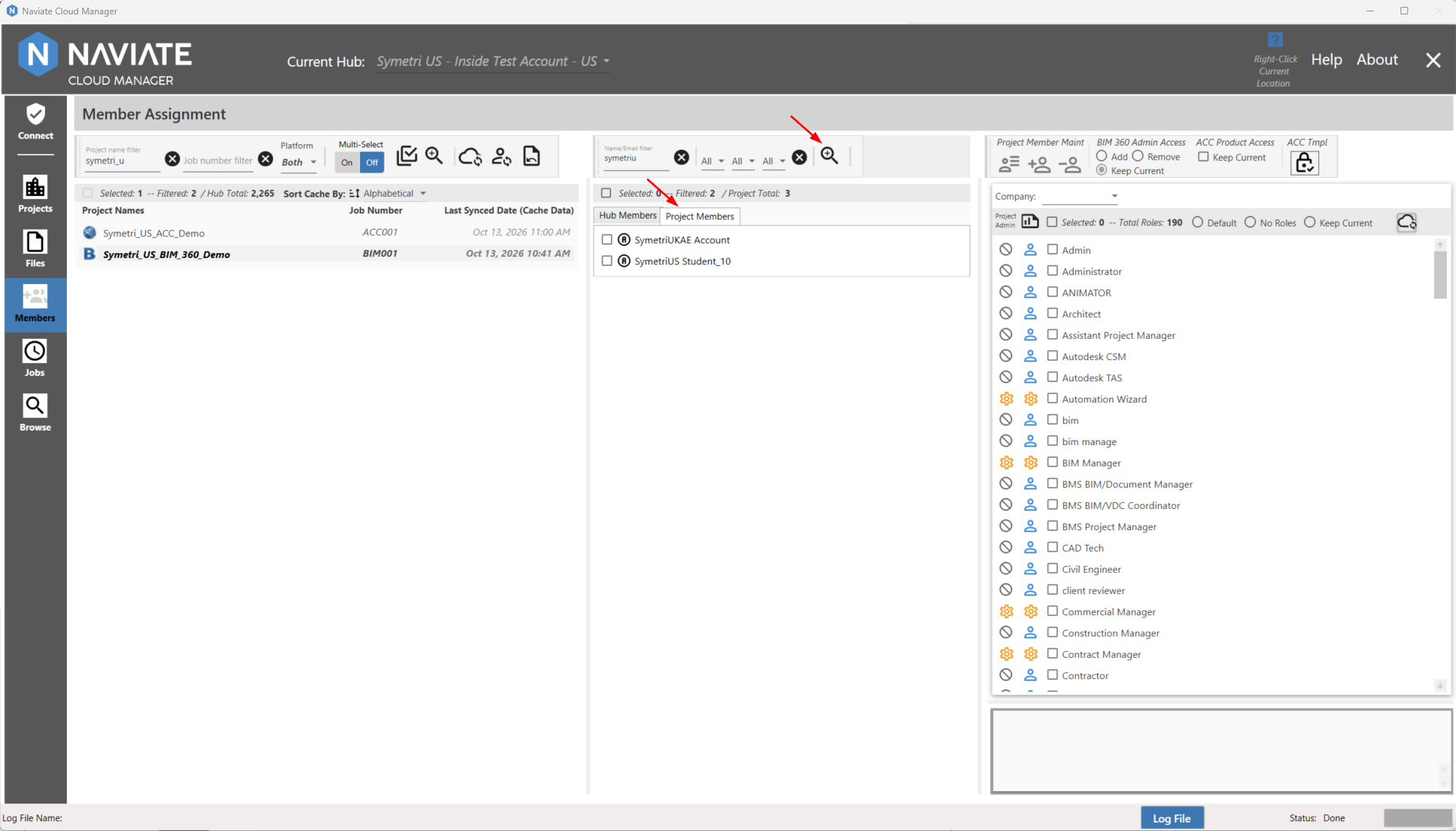
Selecting Members
The members selection works in the same way that the checkbox in Selecting Projects to select projects is implemented.
The checkbox is a three-state control. With it unchecked  , checking it once selects all projects and sets the checkbox to
 . Checking it again leaves the selection unchanged, but changes the checkbox state to
 . As seen above, this is the same as when a multiple selection is made manually. Finally, clicking it a third time deselects all projects and returns it to the initial, 0 records selected state.
Note — The Selected button is a 3-state control and, when directly clicked, functions the same as similar buttons found elsewhere throughout Naviate Cloud Manager:
|
Button state before clicking |
Button state after clicking |
Result |
|
|
|
All currently visible projects are selected. If no filter is set, then all projects are selected. If a filter are set, only those rows displayed by the filter are selected. |
|
|
|
No change occurs. Button can also arrive at this setting as a result of manually unchecking one or more of the projects when all projects have been checked. |
|
|
|
All projects are deselected, regardless of filter setting. |

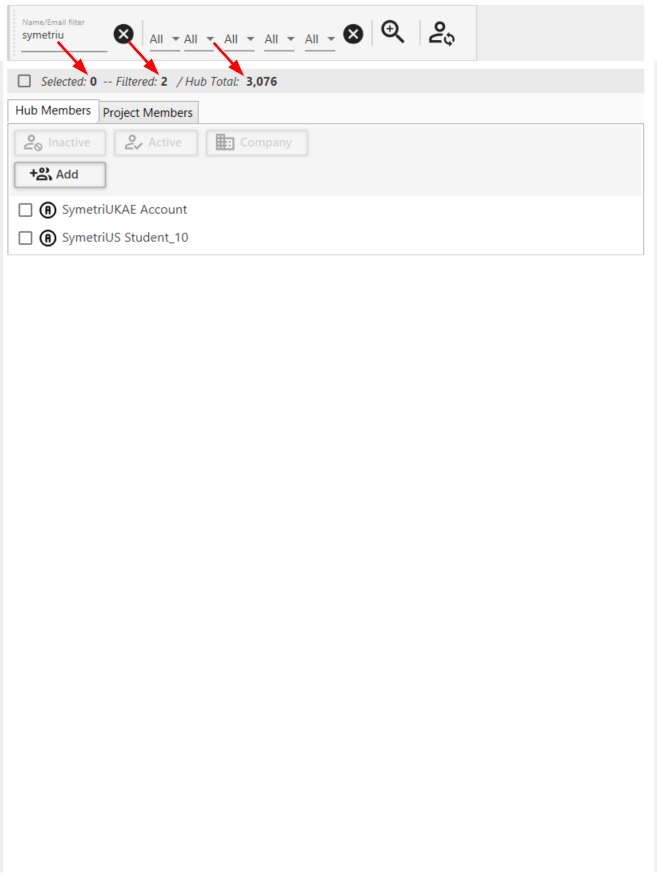
The total selected members is indicated by the number to the right of "Selected:". In this case, 0.
The total filtered member is indicated by the number to the right of "Filtered:". In this case, 2.
The total members in the hub is indicated by the number to the right of "Hub Total:". In this case, 3076.
This means that, out of 3076 total members in the hub, the filter criteria matched with 2 members and none are selected.
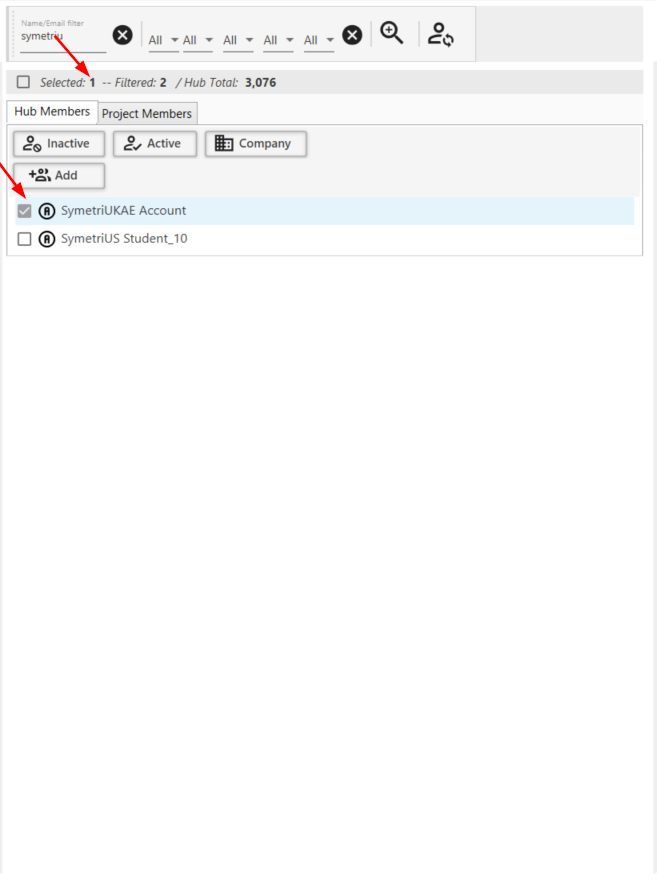
Selecting a member:
Search-Select Tool:
The Search-Select Tool simplifies and speeds up the process of searching and selecting specific members in bulk.
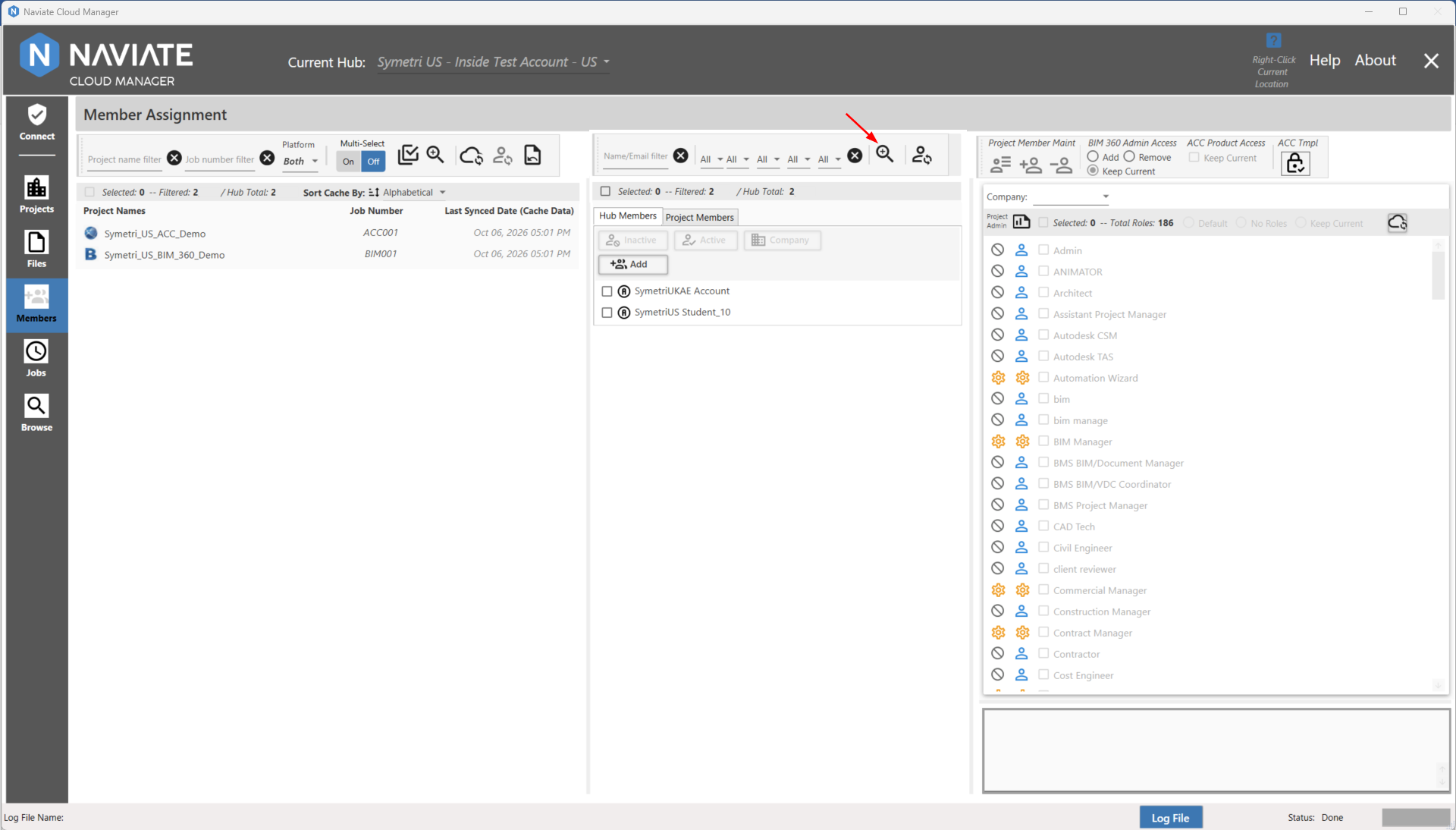
Once the Search-Select Tool button is pressed, the following screen will appear:
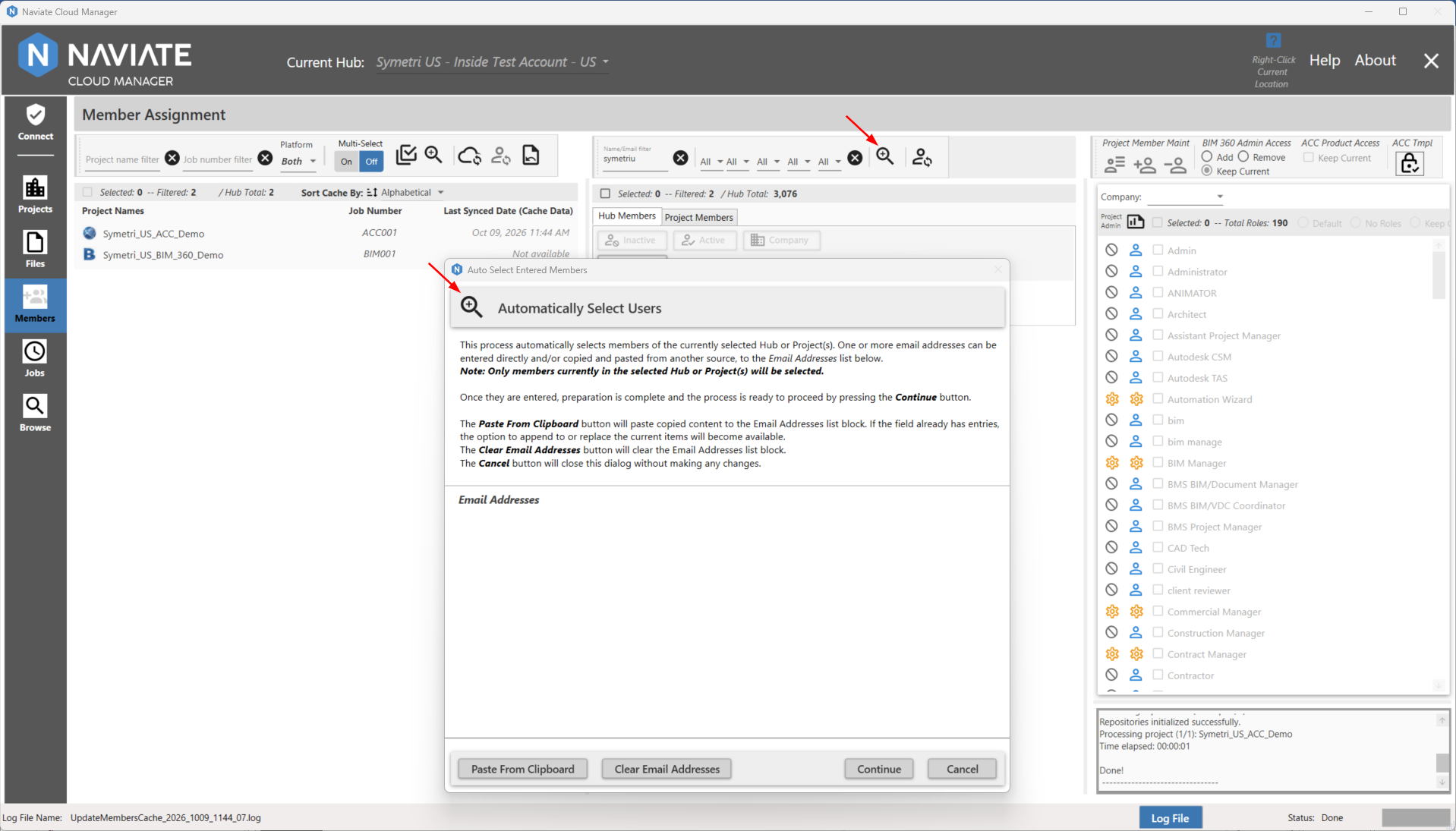
The Paste From Clipboard button allows a user to create the list of search terms using external applications and paste them within the search lines.
The Clear Search Terms button clears all currently entered search terms.
The Continue button continues with the search select process.
The Cancel button cancels the search select process.
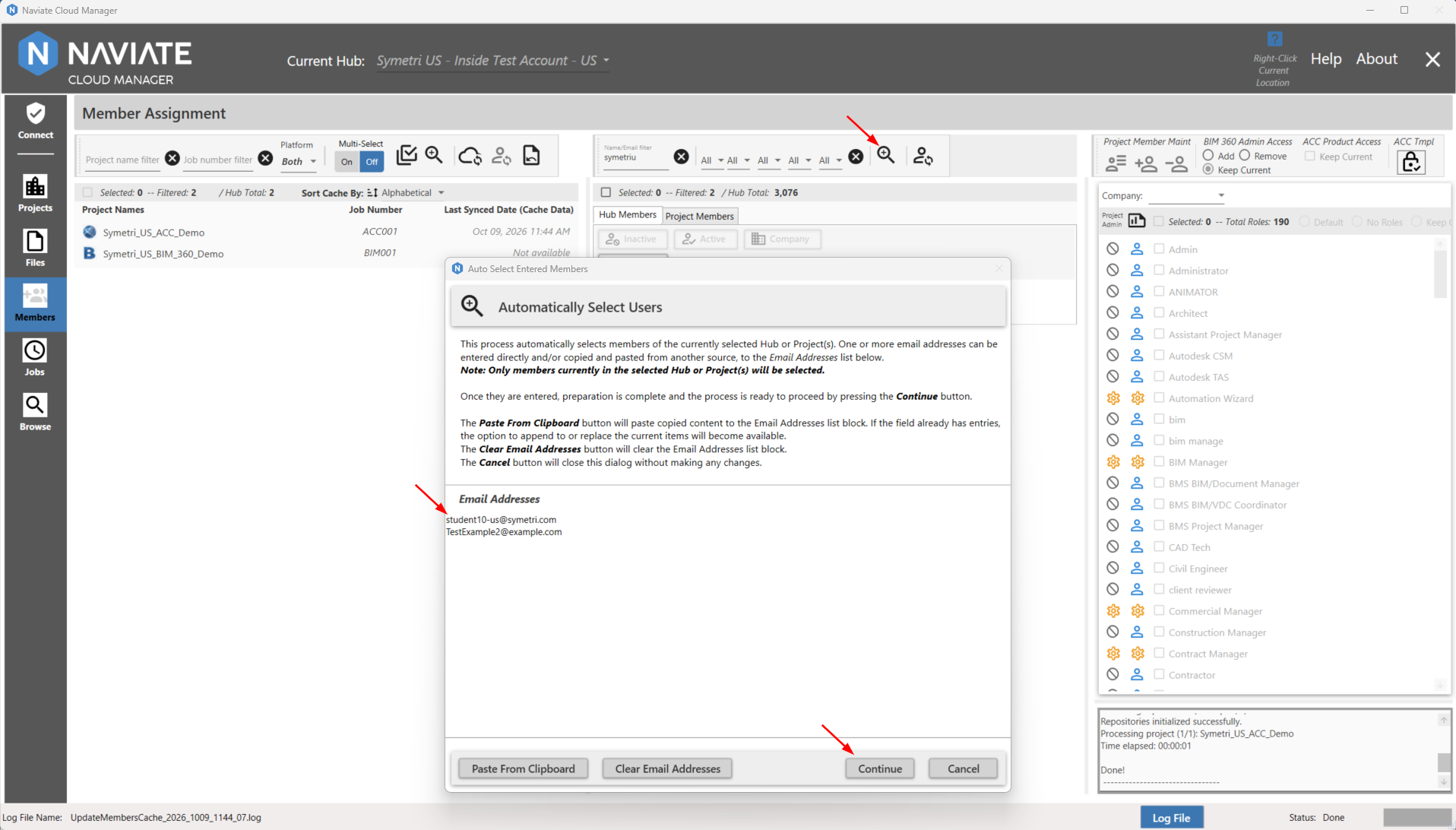
In order to actually search and select the specific members, enter the email addresses of the users that you want to bulk select on a per line basis and press Continue
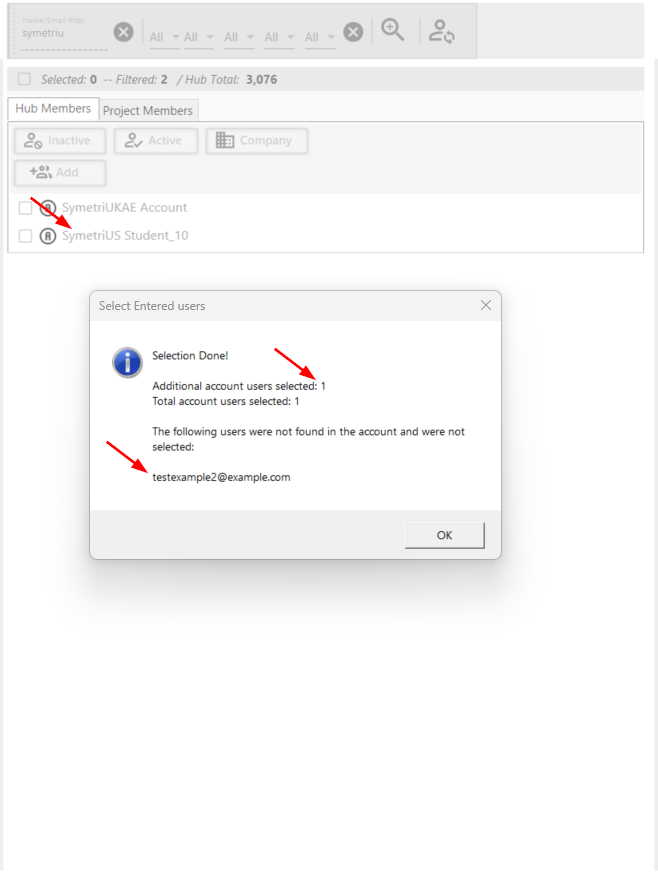
The process should be swift and will provide additional information when it has completed:
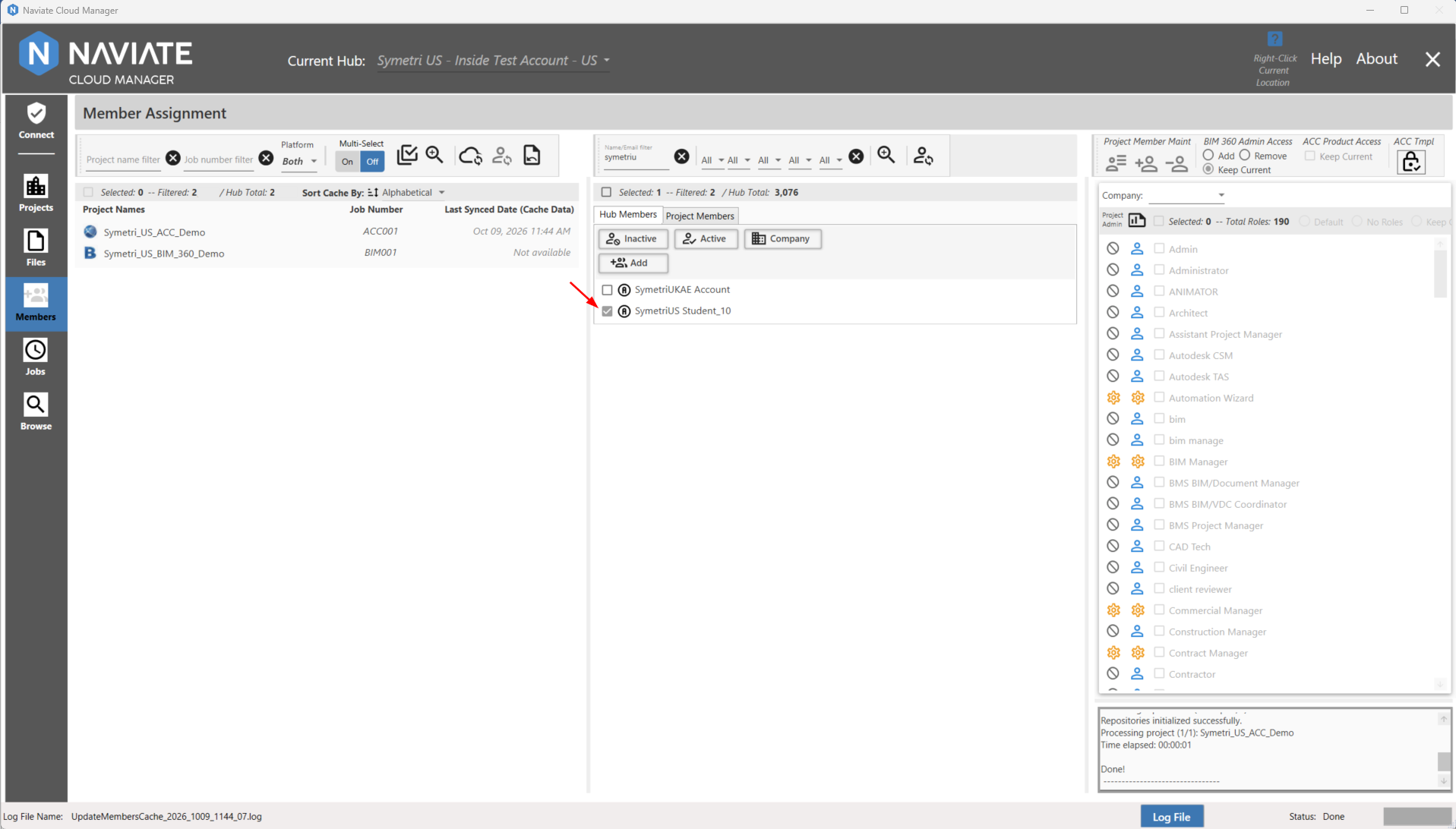
After OK is pressed, the view will be updated to reflect the automatically selected users:
Please note -- Project Members also have the search-select tool available and it works in the exact same way that it does for Hub Members.