Deactivating a License
All activated offline Naviate Cloud Manager Standard and Naviate Cloud Manager Pro licenses need to be deactivated via the Symetri Toolbox or the My Symetri Portal.
A Naviate Cloud Manager license needs to be assigned in the My Symetri Portal or verify that a license is a assigned.
In order to schedule and run job automations, Scheduled Jobs, a Naviate Cloud Manager Agent (offline) license needs to be assigned and activated.
In https://my.symetri.com offline licenses can be identified by having the download icon:
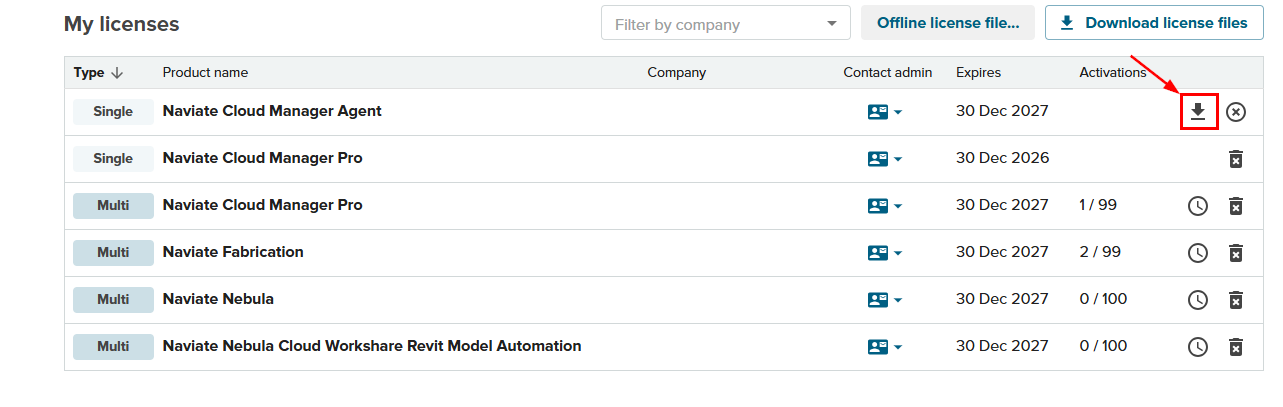
Deactivating a license:
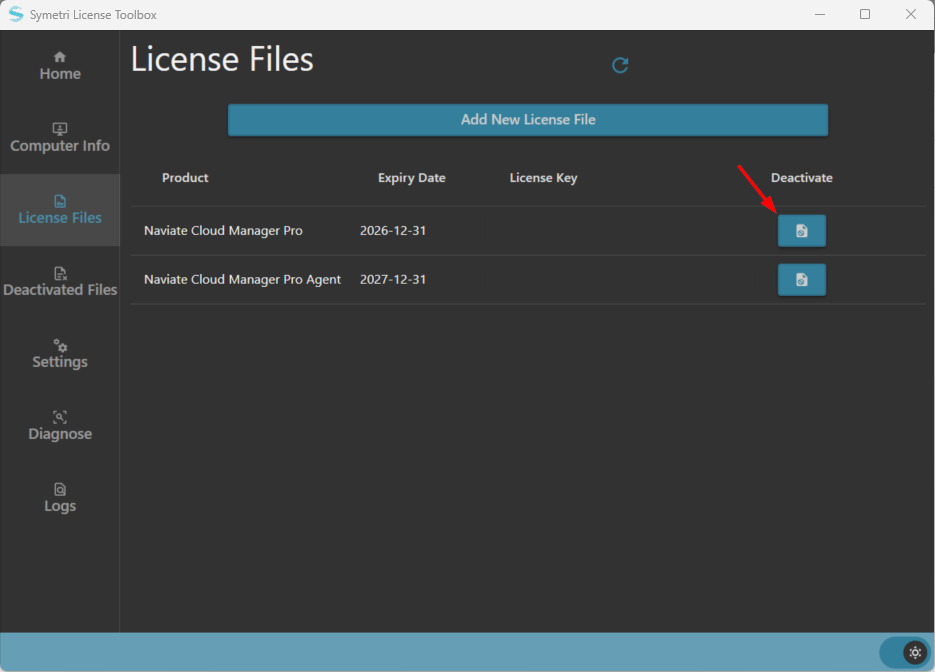
Run the Symetri License Toolbox.exe and navigate to the “License Files” tab. Here you will see all currently active licenses. To deactivate a specific license, click the "Deactivate a license" button  :
Please note -- the Naviate Cloud Manager Pro (or Standard) license needs to be deactivated:
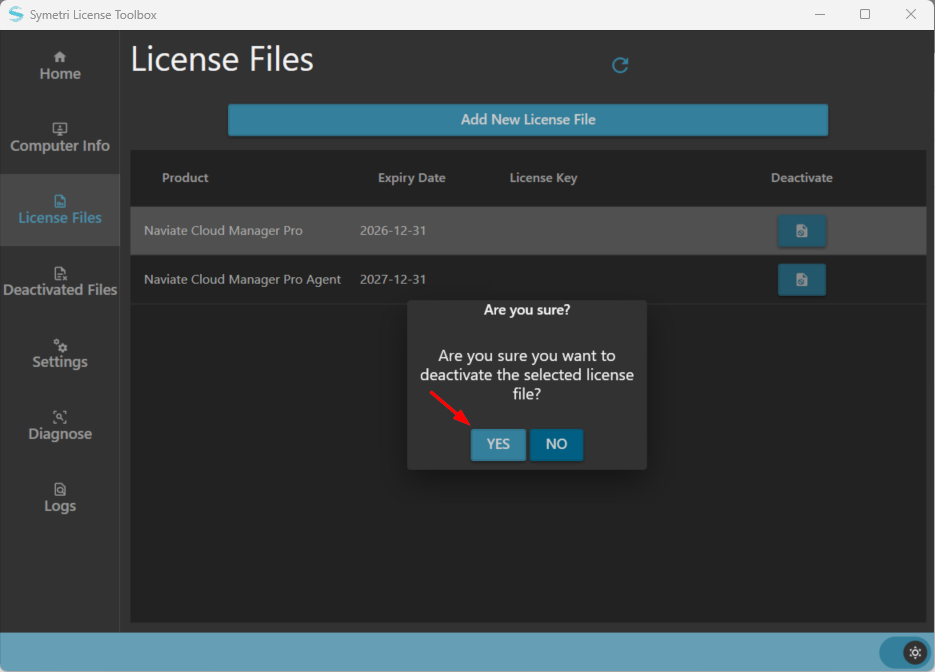
Follow the prompt:
There are two ways to deactivate the license:
1. By copying the deactivation code 
2. By continuing the process in the browser 
The screenshot below will indicate the positions of the buttons that distinguish these two different paths:
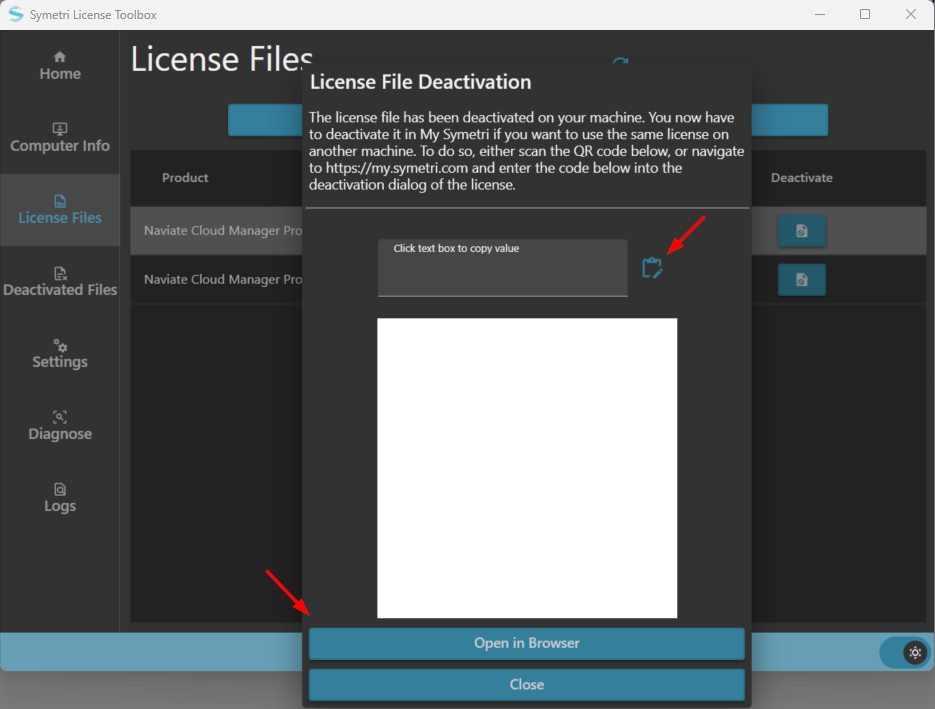
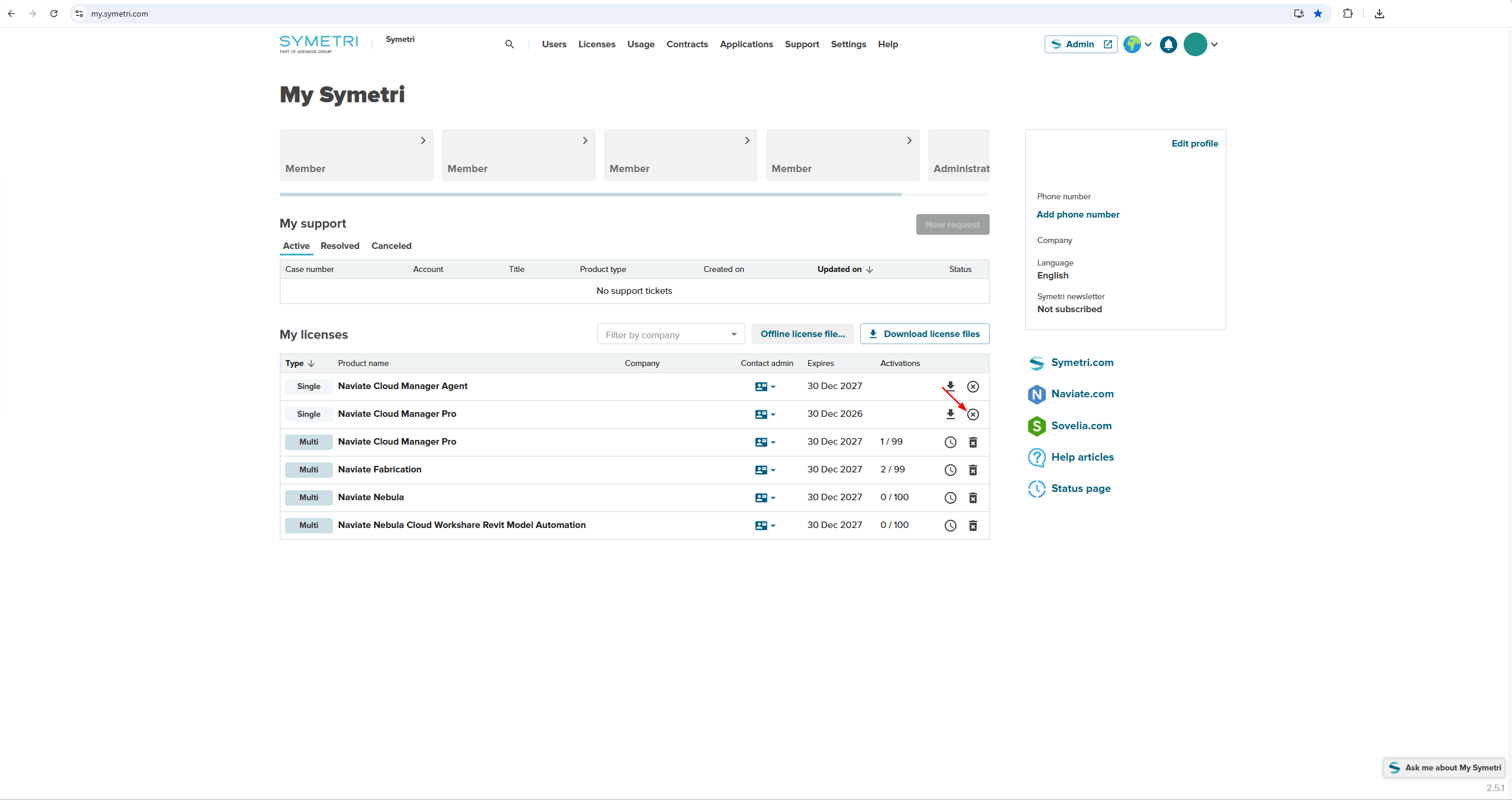
For the first path; By copying the deactivation code , once the deactivation code has been copied, navigate to My Symetri Portal and click on the deactivate a license button:
Paste the deactivation code:
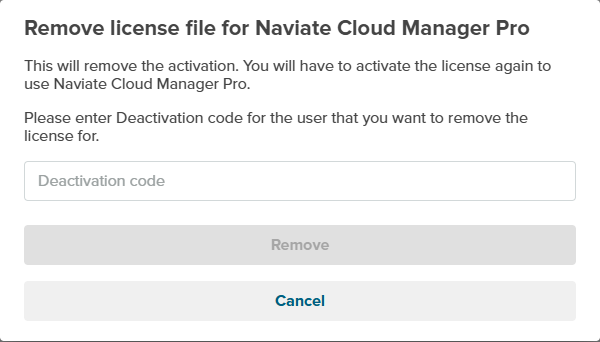
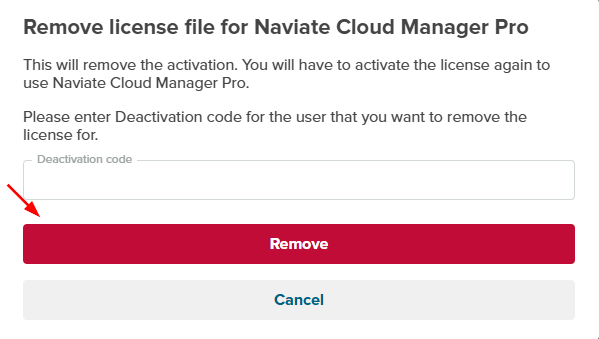
The license file will be deactivated after the deactivation code is pasted and the Remove button is pressed
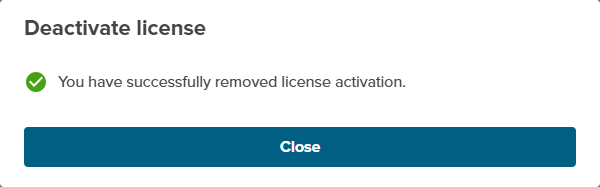
For the second path; By continuing the process in the browser , once the button is clicked to open in the browser, the following dialog should appear to confirm that the license has been deactivated:
Please note -- Two paths to deactivate the license have been established to provide an alternate method to deactivating the license should issues arise in either path.