Agent License Setup
Agent licenses are offline licenses that need to be assigned and activated to be able to run job automations in Naviate Cloud Manager.
Users with a Naviate Cloud Manager Standard license will need to have an Agent (offline) license activated in order to run upload and download jobs.
Users with a Naviate Cloud Manager Pro license will need to have an Agent (offline) license activated in order to run all available job types.
As mentioned previously, agent licenses need to be assigned and activated. Please find the steps below:
How to set up the agent license:
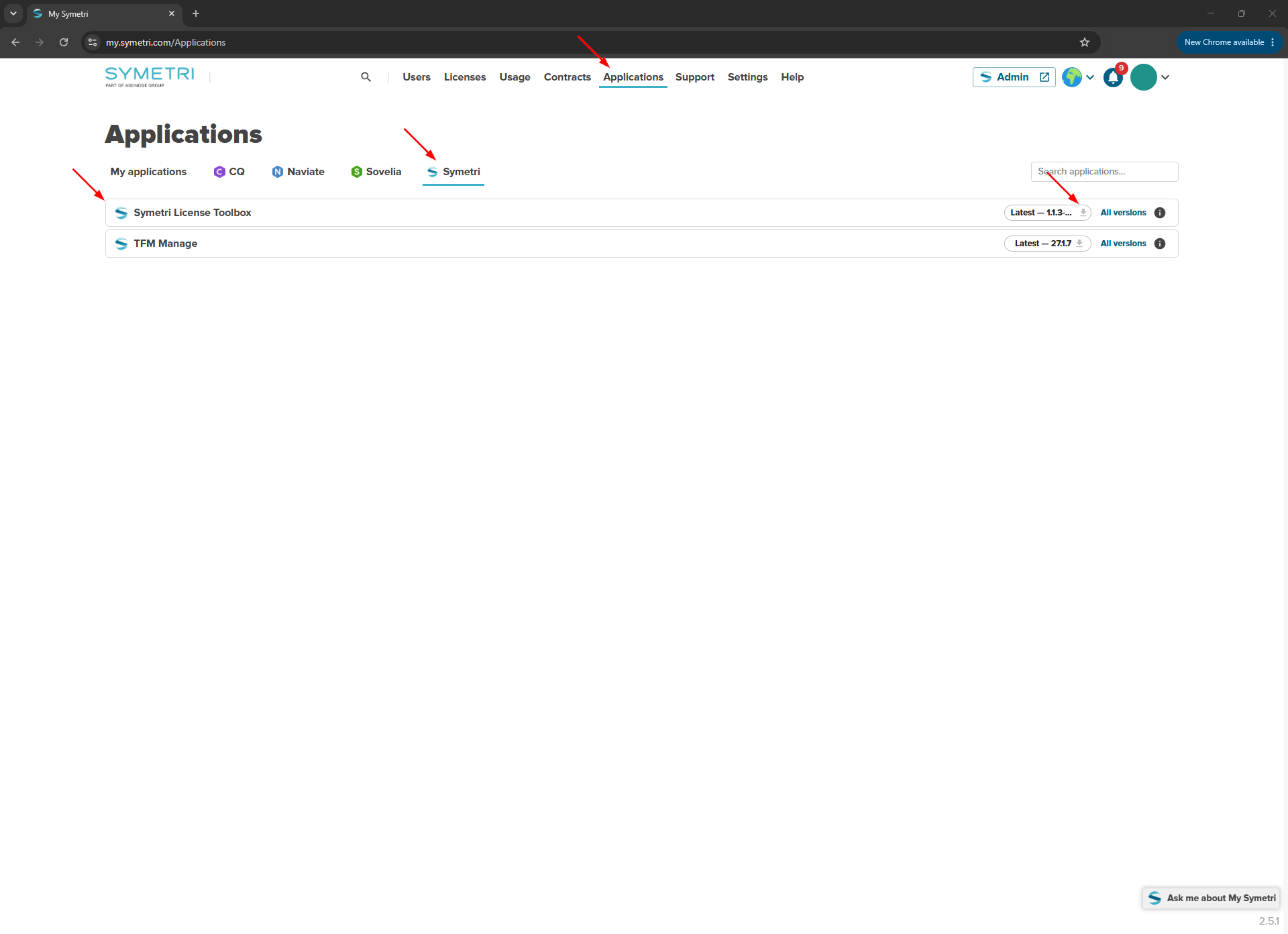
1. Navigate to Applications in My Symetri Portal and download the Symetri License Toolbox.
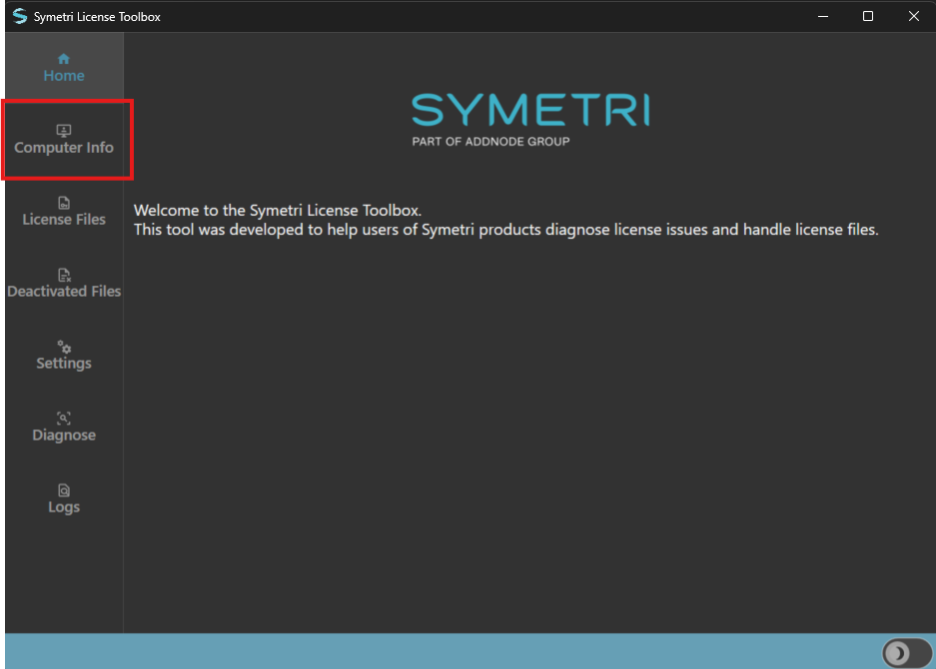
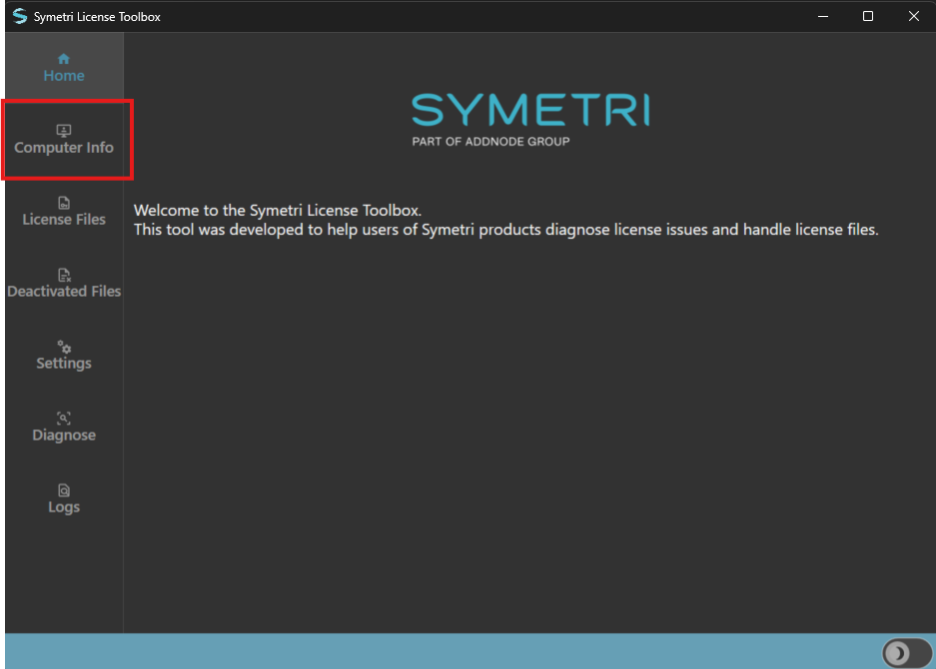
2. Run the Symetri License Toolbox.exe and navigate to the “Computer Info” tab.
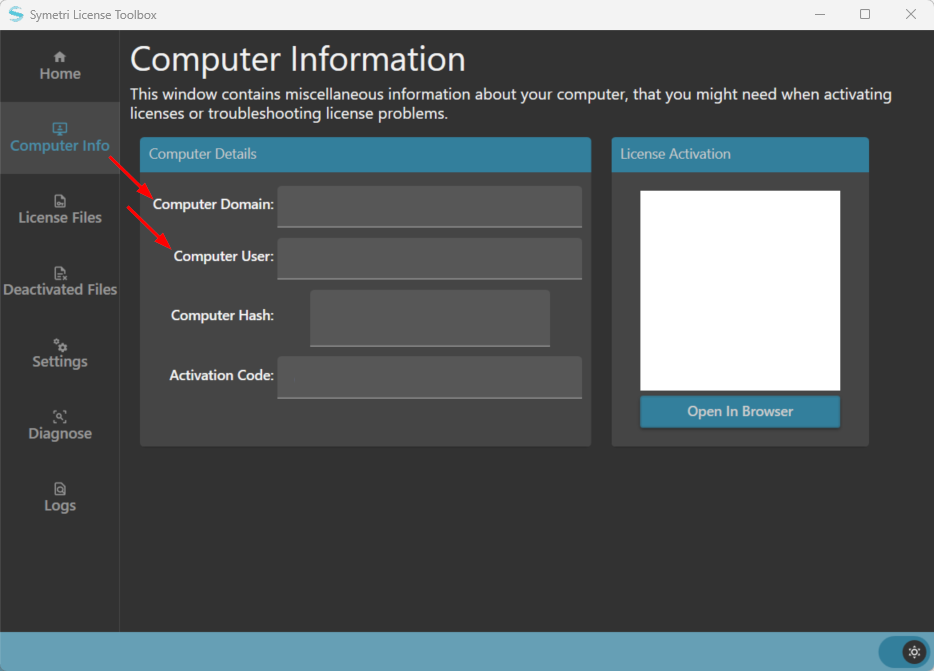
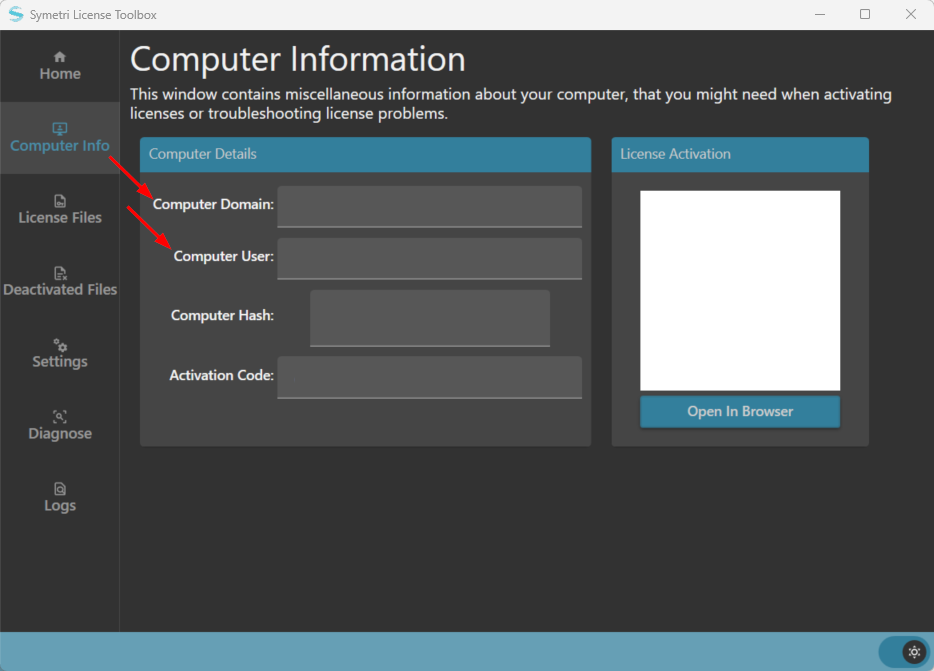
Take note of the values for Computer Domain and Computer User. This will be needed for creating the offline license in the Symetri license portal:
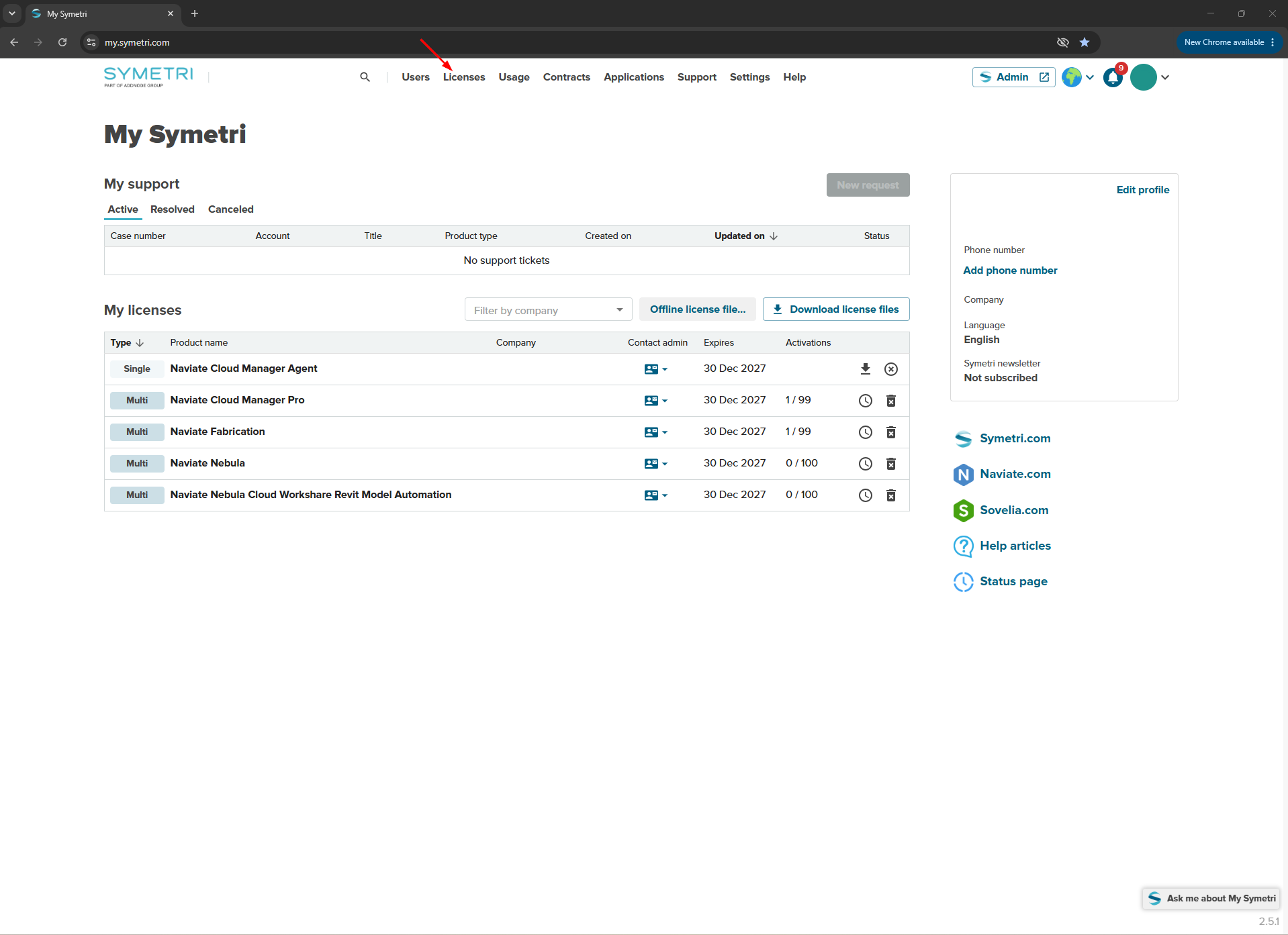
3. In your browser, navigate to the My Symetri Portal and click on the “Licenses” tab.
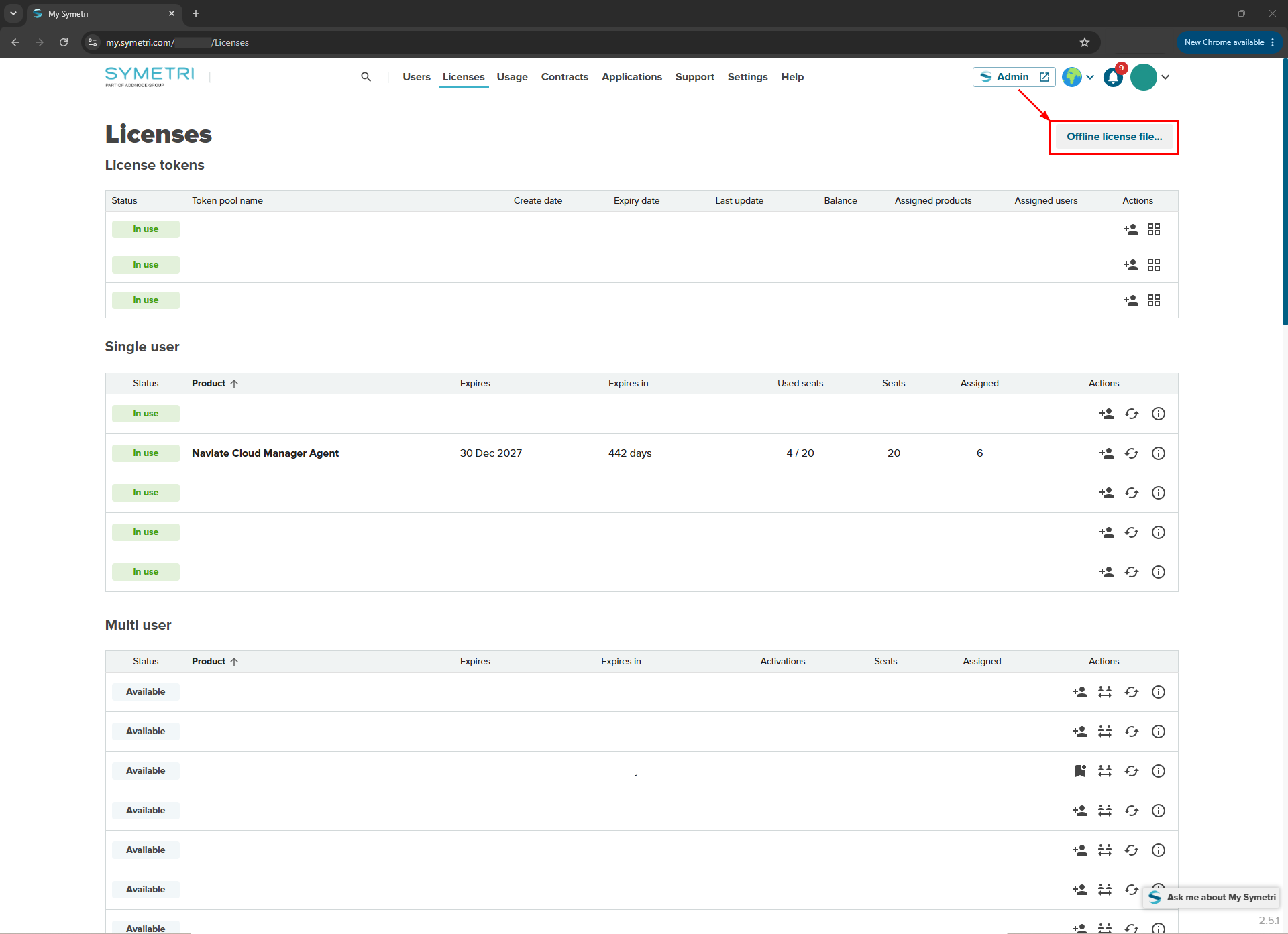
4. In the licenses tab, click on the “Offline License File” button to start generating your Naviate Cloud Manager Agent (offline) license:
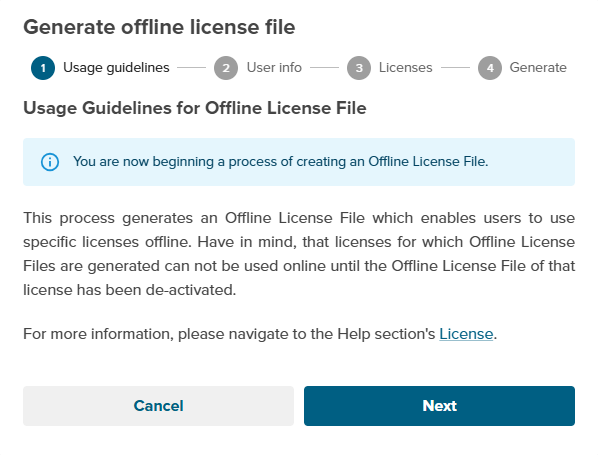
5. A dialog box will be displayed signaling you to follow the prompts. Here you will click “Next”:
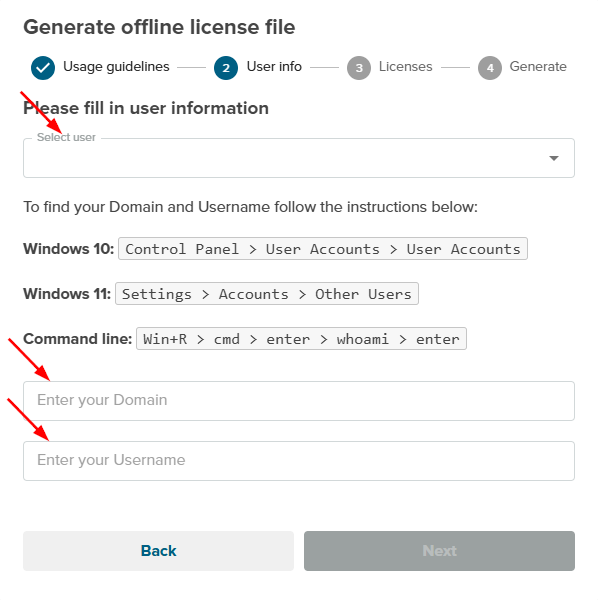
6. In this next section, you will need to first select your user. After selecting the user, enter the Computer Domain and Username using the Computer Domain and Computer User fields in the Symetri License Toolbox (noted in step 2). Once the fields are filled, click “Next”:
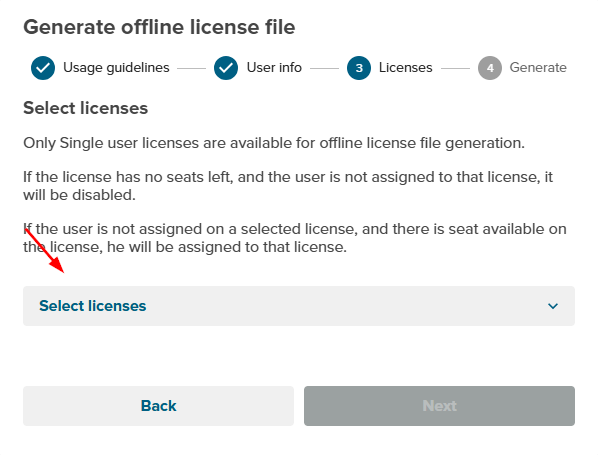
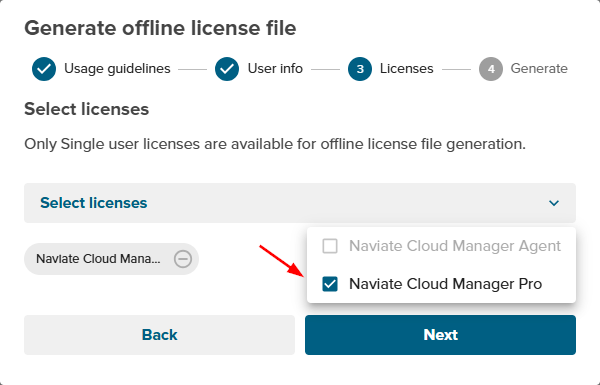
7. You will now be prompted to select your desired license from the “Select License” dropdown. In this case, select “Naviate Cloud Manager Agent” and click “Next”:
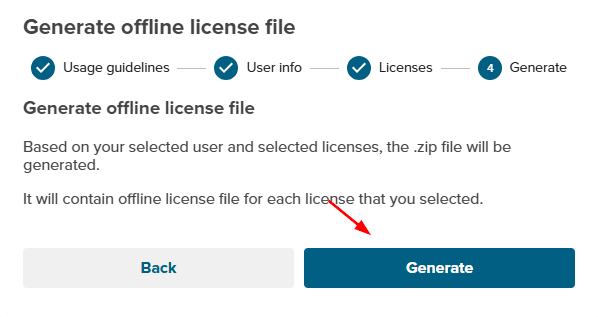
8. At this point you can generate your offline license file by clicking the “Generate” button. It will be downloaded and can be activated using the Symetri License Toolbox:
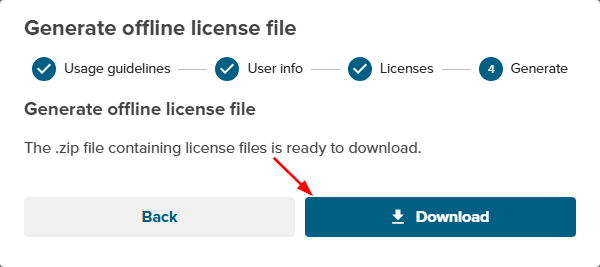
Once the license file has been generated, it can be downloaded:
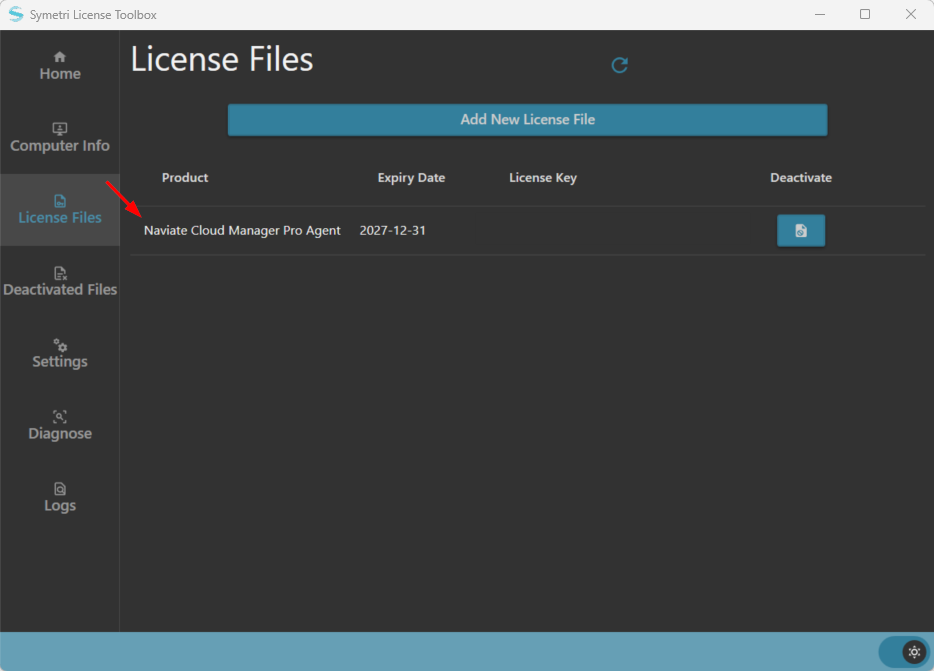
9. In the Symetri License Toolbox navigate to the “License File” tab. Here you will click the “Add New License File” button, find your downloaded offline license file and select it to activate it.
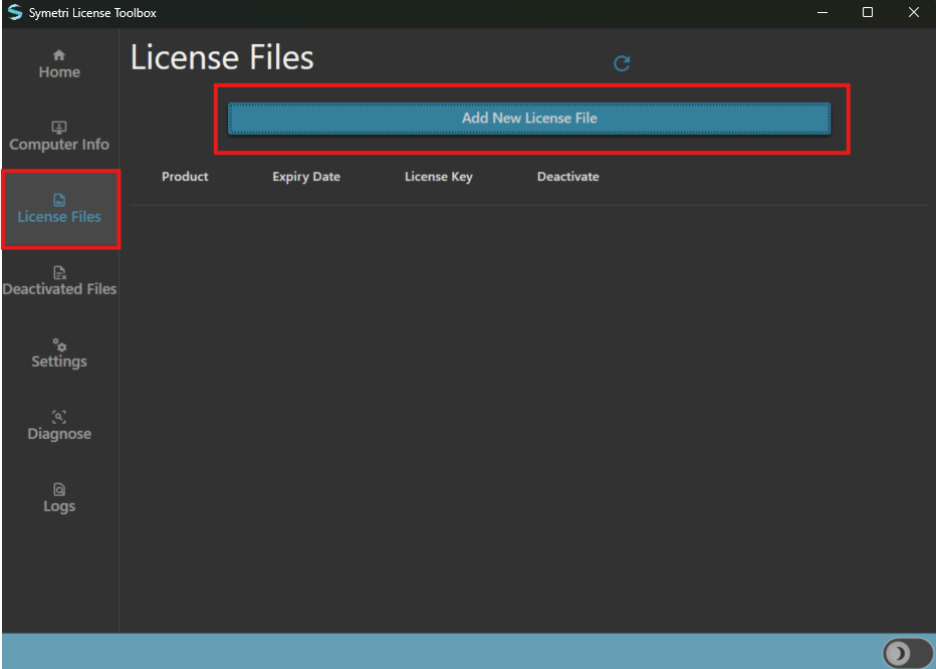
10. Once the license file has been added, the license should be considered "activated" and no further action is needed: