Add Naviate Cloud Manager to ACC Hubs
To access Naviate Cloud Manager it is necessary to first locate it on the Autodesk Construction Cloud® (ACC) Apps tab then Add it. Users retain the assigned service level by obtaining user access directly through an Autodesk® Account Login. This trusted integration simplifies project setup through granular folder and file permissions which allows for scheduling uploads, downloads, publishing and exporting of PDFs and NWCs.
The following describes the process for adding the App to the user's account, describing two different ways to access the Naviate Cloud Manager app. The end result is the same, however, and the user arrives at the same Naviate Cloud Manager app entry screen.
Important Note — You must have Autodesk Construction Cloud® (ACC) Account Admin access to perform the following procedure. If not, the following steps cannot be performed. If you don't have this level of access, you must either have Account Admin access granted to you or, alternatively, have someone with the necessary access perform the following steps.
Direct Access to Naviate App
This is the most simple and direct way to access the Naviate App. Perform the following steps to add the Naviate Cloud Manager App, after logging into Autodesk Construction Cloud®.
- Navigate to Account Admin
- With Account Admin selected, select the Apps tab
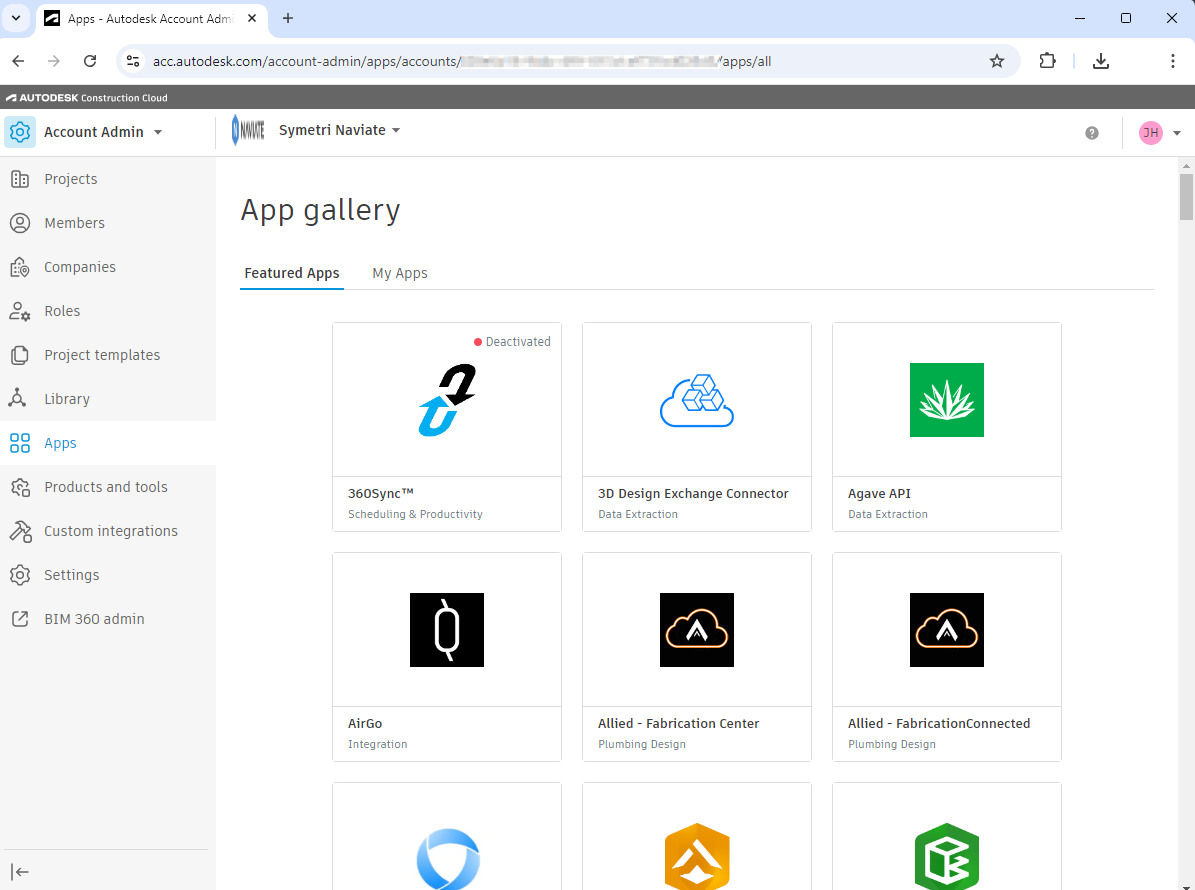
- The Apps tab shows an alphabetical list of the many posted apps. These apps perform many different functions together with Autodesk Construction Cloud®.
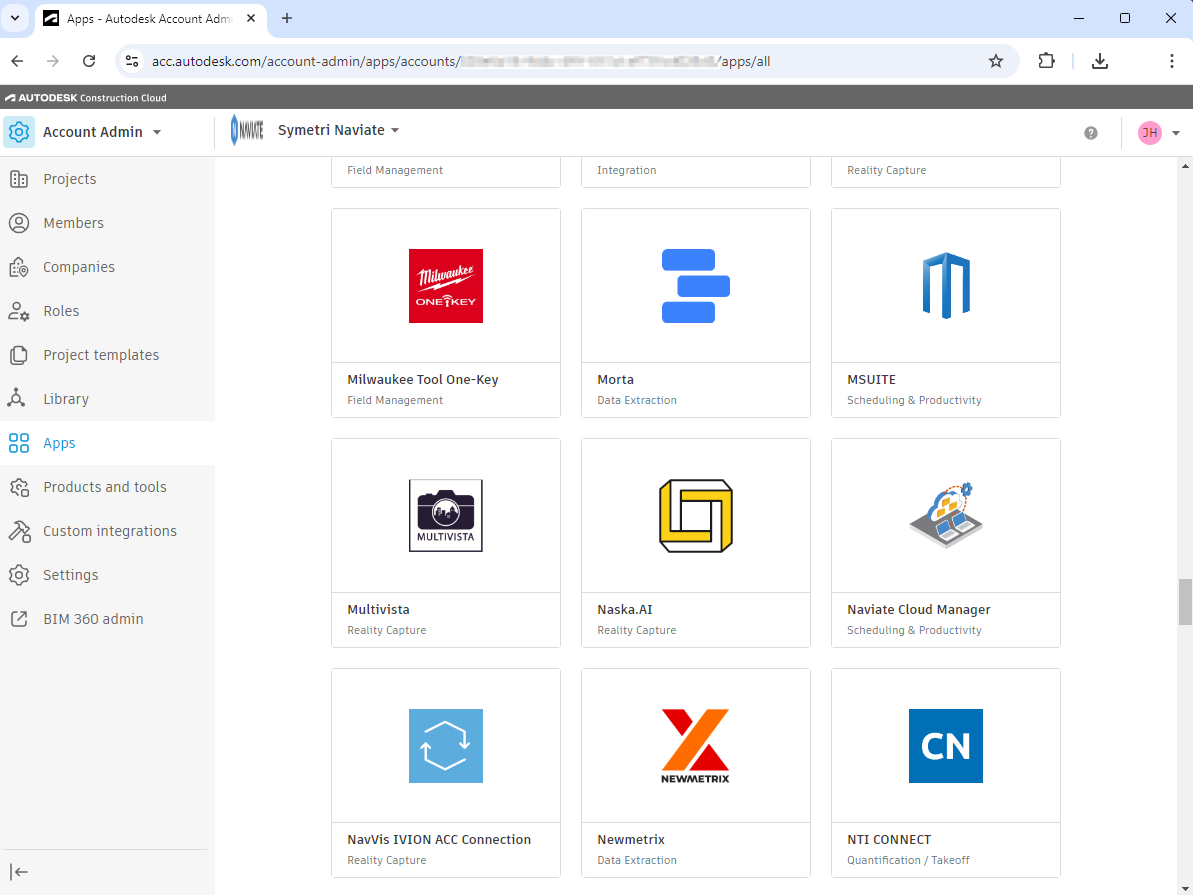
Navigate down the apps tab until you reach Naviate Cloud Manager. Since it starts with the letter 'N' and will be a little more than half way down the list.
- Select Naviate Cloud Manager and the following screen will appear:
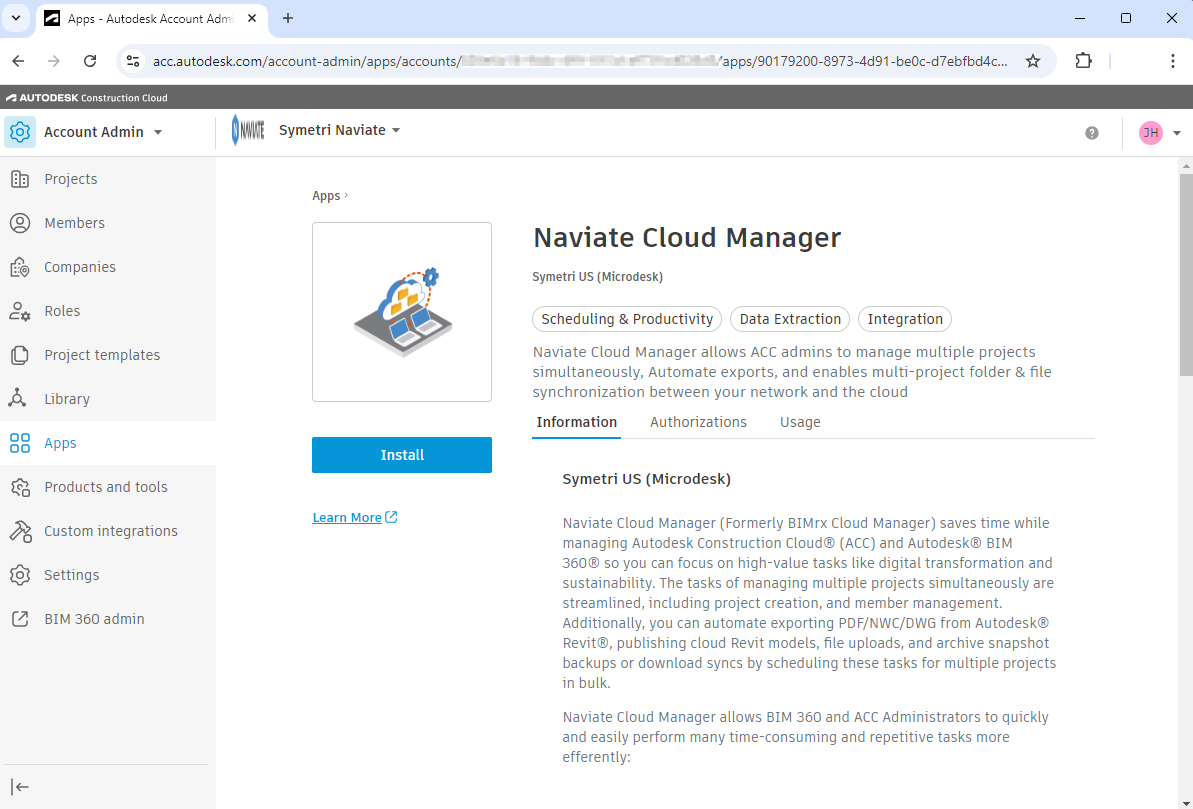
The next step is to press the  Install button, shown above, to go to the next screen.
- Here, the Authorize and Install screen appears:
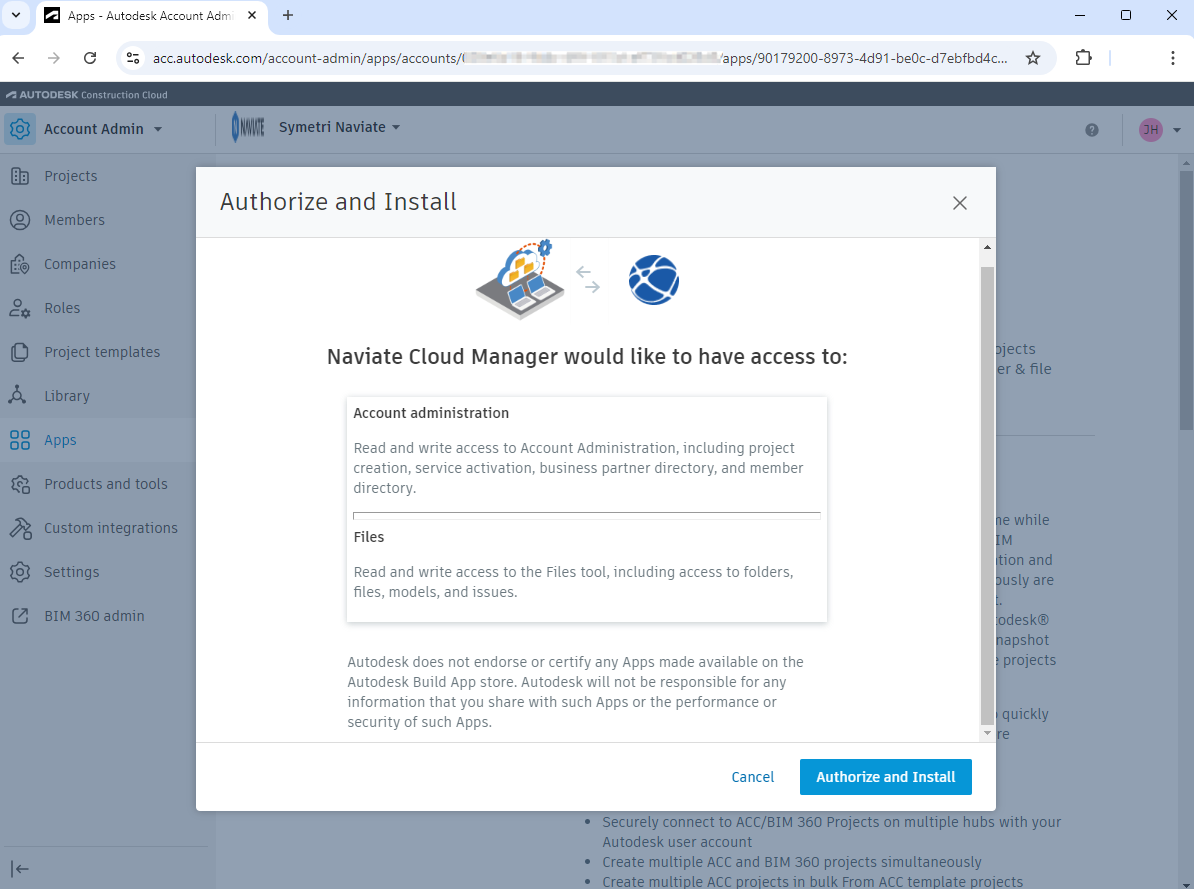
The final step is to press the  Authorize and Install button.
- After authorization, the Naviate Cloud Manager screen re-appears.
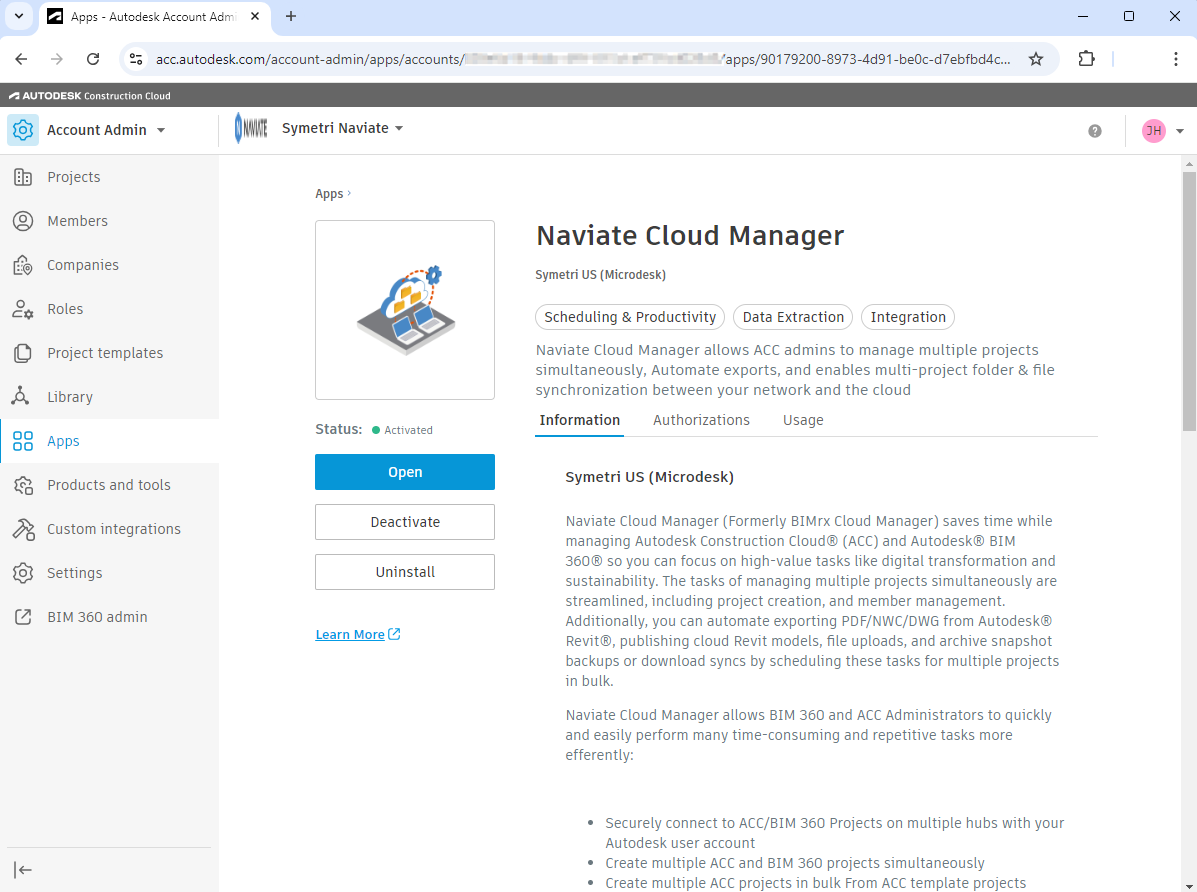
The Naviate Cloud Manager App Status shows itself Active and is now ready to use.
Please Note — Custom Connections remain fully functional using the Autodesk Platform Services (APS) App and Custom Integration definitions.