Custom Integration Definition - Autodesk Construction Cloud®
Autodesk Construction Cloud® (ACC) Custom Integrations must be configured to allow the Naviate Cloud Manager Custom Connections to be established with ACC.
IMPORTANT NOTICE:
Custom Integration may not be enabled for all organizations. If Custom Integrations is not enabled, a simple request to Autodesk® is all that is needed to enable Custom Integrations. Follow the request instructions below:
Send an email to bim360appsactivations@autodesk.com with a request to convert your BIM 360® account to a developer account. Include the following information.
- ACC Account Name - the email address you used to create the account.
- ACC Account ID - the account ID generated when you created the account.
- Email address of the ACC account admin.
Full details for setting up and defining access can be found at Retrieve ACC Account and Project ID.
To create a Custom Integration:
- Log into the Autodesk Construction Cloud® account as the Account Admin and click on Custom Integrations (see below).
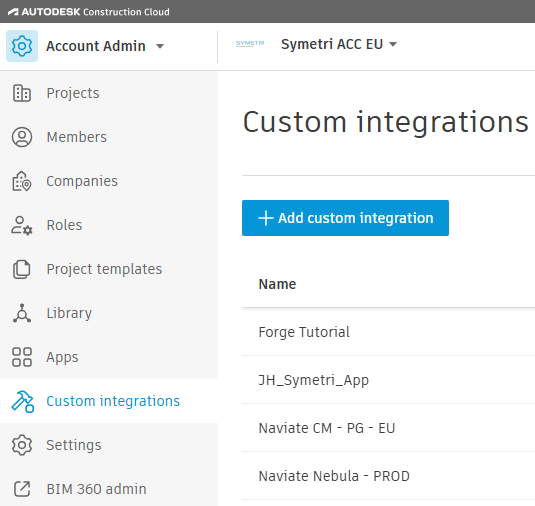
- Then, click on the Add Custom Integration button to bring up the following screen:
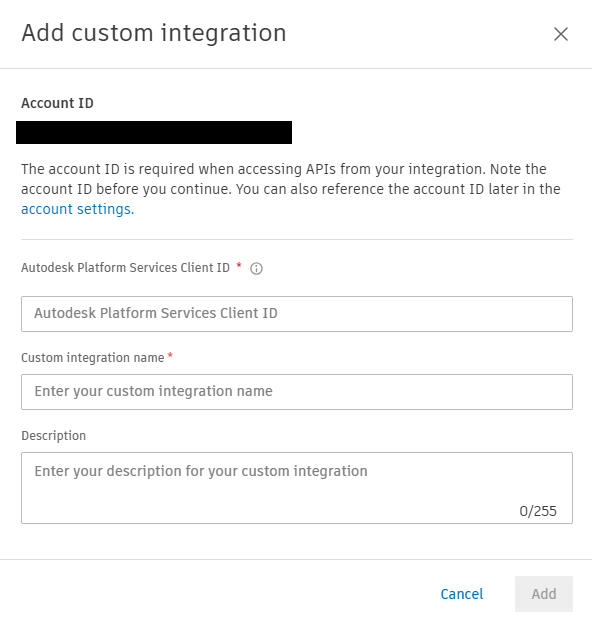
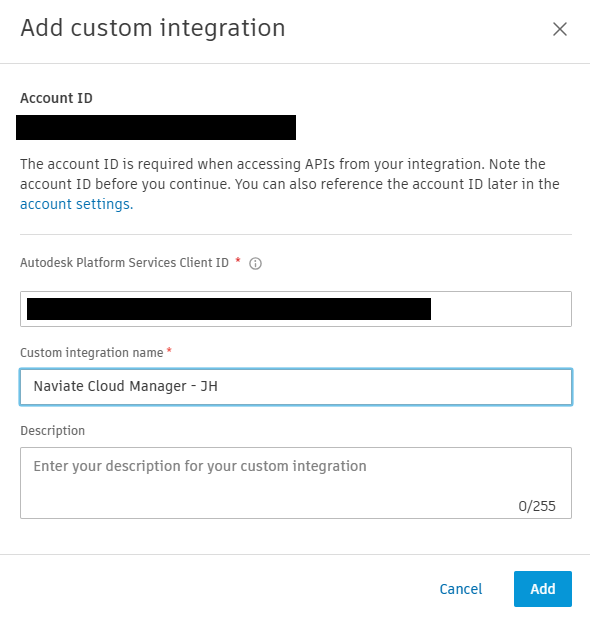
- Fill out the information created in the Autodesk® Platform Services App and click the Add button to continue.
- The Custom Integration is now added and ready for use.
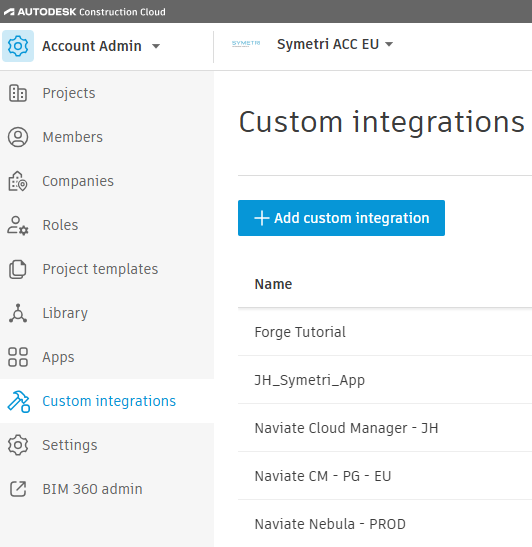
Please Note — The Autodesk® Platform Services Client ID must match the Client Id generated when you created the app. If you don't know what the Autodesk® Platform Services App Id is, please contact Autodesk® Support.