Cache Management of Projects
When first navigating to the Members tab, there is generally a short wait time while Naviate Cloud Manager goes out to BIM 360® and Forma (ACC), retrieves the project and Hub Member data for the currently selected Hub and Connection, then loads it into the project and member list views. After this initial data load, from that point on, it then reduces processing time by caching these lists in memory and retrieving them when requested. The lists remain in memory until one of two things happen--either the current Hub is changed or the Connection is changed. When either of those events occur, the application then goes back out to BIM 360® and re-loads the data for the now-current Hub and Connection.
This data is also stored locally, on a per hub basis, at:
C:\ProgramData\Microdesk\BIMrx.CloudManager\Data\Members
However, what if data is updated from outside of Naviate Cloud Manager? What if, for example, a user at another desktop goes in and adds new projects using Naviate Cloud Manager? Or if member data is changed elsewhere using BIM 360®/Forma?
The answer to this problem comes in the shape of three separate buttons to manage the local cache, each with their own distinct purpose.
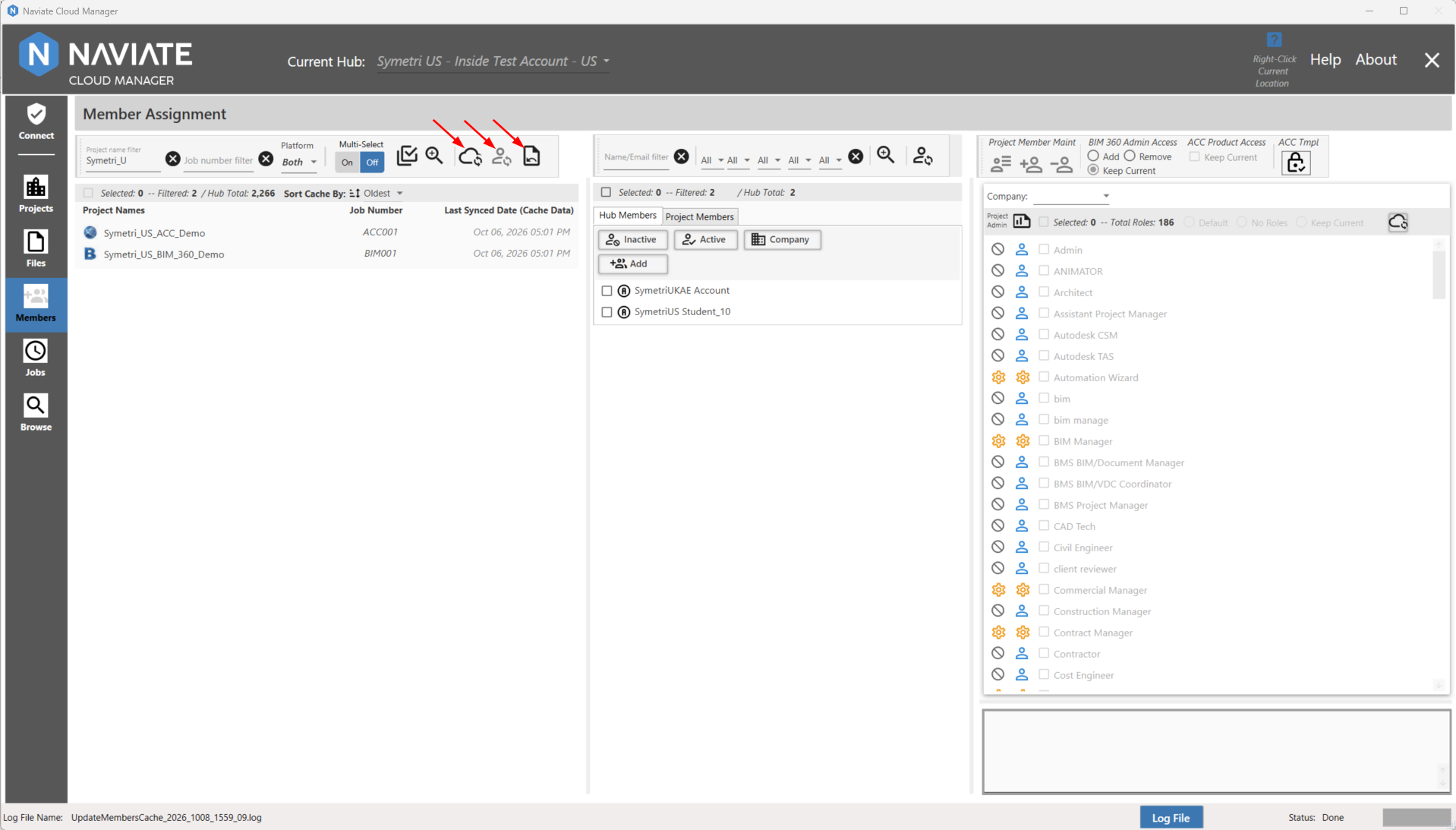
 Sync local project list data with BIM 360® / Forma (ACC) data. This button will sync local project data with the remote BIM 360® / Forma (ACC) data
 /
 Sync local project member list data with BIM 360® / Forma (ACC) data. There are two states for this button; Enabled - when at least 1 project is selected, and Disabled - when no projects are selected. When a project is selected and this button pressed, the project member data will be synced with the remote BIM 360® / Forma (ACC) data. The "Last Synced Date (Cache Data)" will also display the date and time of the sync to reflect when the last time was when that project's data was synced with the remote BIM 360® / Forma (ACC) data.
 Clear all local cache for the connected hub. This will delete the local cached files for the currently connected hub and navigate the user back to the Connect Module.
Please note -- If for whatever reason the local cache gets corrupted and/or any other issues arise in the Members Module as a result of data not properly being loaded, or if the user should want a fresh start of the Members Module, then the appropriate step would be to manually delete the data in this location C:\ProgramData\Microdesk\BIMrx.CloudManager\Data\Members or to press the "Clear all local cache" button (this latter method only clears the data for the currently connected hub).